
Most MCP tutorials stop at “add your server to the config file,” which is like most of a bridge. A Claude Desktop MCP setup that works on the first try is not luck; it is three exact steps and a handful of known failure modes, and this guide gives you both, in the order that avoids them. It finishes the job here: three complete configurations, the variants for Cursor and Cline, and a fix table for the errors that actually occur when you connect a local server for the first time. Every step assumes a local-first server, meaning one that runs on your machine over stdio, because that is the setup that keeps your project data on your disk.
The working example throughout is a memory server, since memory is the most common reason people attempt this connection, and the specific server used in the examples is `sovel-brain`, the command-line tool from SOVEL Net-Routed Agentic OS. The same structure works for any stdio MCP server; only the command and arguments change. That is the quiet strength of a Claude Desktop MCP setup done this way: once the pattern is in your hands, every future server is a two-line edit.

Before you start: the three prerequisites
Check these first, because most failed attempts at a Claude Desktop MCP setup fail right here:
- A local server binary. You need a command that runs the MCP server. For the examples below that is
sovel-brain, installed from its release ZIP and verified withsha256sum -c SHA256SUMS.txt. For any other server, note its exact launch command. The wire protocol all of them speak is documented at the Model Context Protocol site, and it is worth skimming once. - Node.js 22.13.0 or newer if the server is Node-based, which the example is. Check with
node --version. - An initialised project. For the memory example, run
sovel-brain initinside your project folder once, so the.sovel_memory/database exists before the client connects.
Config 1: the Claude Desktop MCP setup
The canonical Claude Desktop MCP setup starts with one JSON file, and Claude Desktop reads its server list from nowhere else. Open or create it at:
macOS: ~/Library/Application Support/Claude/claude_desktop_config.json
Windows: %APPDATA%\Claude\claude_desktop_config.json
Add the server under mcpServers:
{ "mcpServers": { "sovel-brain": { "command": "sovel-brain", "args": ["mcp"] } } }
Save, quit Claude Desktop fully, including from the system tray on Windows, and reopen it. On a correct Claude Desktop MCP setup, the tools icon appears in the message box, and the server’s tools are listed under it. If the icon does not appear, go straight to the error table below; the cause is almost always in the first three rows.

Config 2: the same server in Cursor
A Claude Desktop MCP setup transfers to Cursor almost unchanged, because Cursor keeps MCP configuration per project or globally in the same shape. Open the MCP panel from settings, or create .cursor/mcp.json in the project root:
{ "mcpServers": { "sovel-brain": { "command": "sovel-brain", "args": ["mcp"] } } }
Reload the window after saving. Cursor lists the server under its MCP section with a green status dot when the process spawned correctly. One Cursor-specific note: it sometimes caches a failed spawn, so if you fix a broken command path and the dot stays red, reload the window before assuming the fix failed.
Config 3: the same server in Cline
The third variant of the Claude Desktop MCP setup belongs to Cline, the VS Code agent extension, which manages MCP servers from its own panel. Open the Cline sidebar, choose the MCP servers view, and add:
{ "command": "sovel-brain", "args": ["mcp"], "env": {} }
Cline accepts the same shape as Claude Desktop plus an optional env object, and it applies changes without a restart. Because Cline runs inside your editor, the server inherits your shell environment, which is convenient for PATH-dependent commands.
First conversation: verify the connection
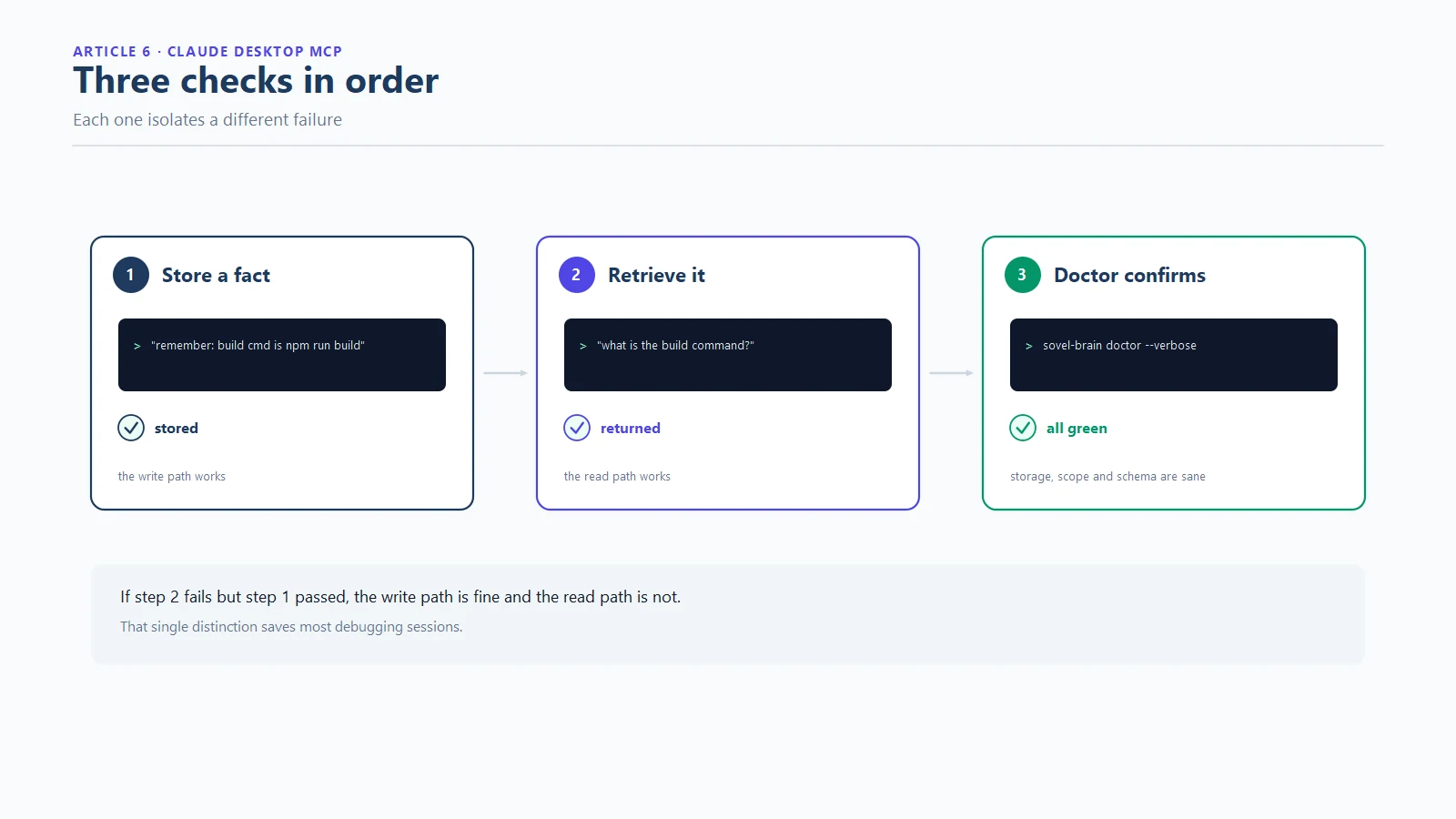
Every Claude Desktop MCP setup deserves verification before real work, so do not skip this step; it is the difference between a config that looks right and a connection that works. In a fresh chat, ask the client to use the memory tools on a small task: store one fact, retrieve it, then run sovel-brain doctor in a terminal and confirm the session appears in the health report. If the store, retrieve and doctor steps all agree, your Claude Desktop MCP setup is verified end to end, and the same verification applies in Cursor or Cline.
The error-fix table
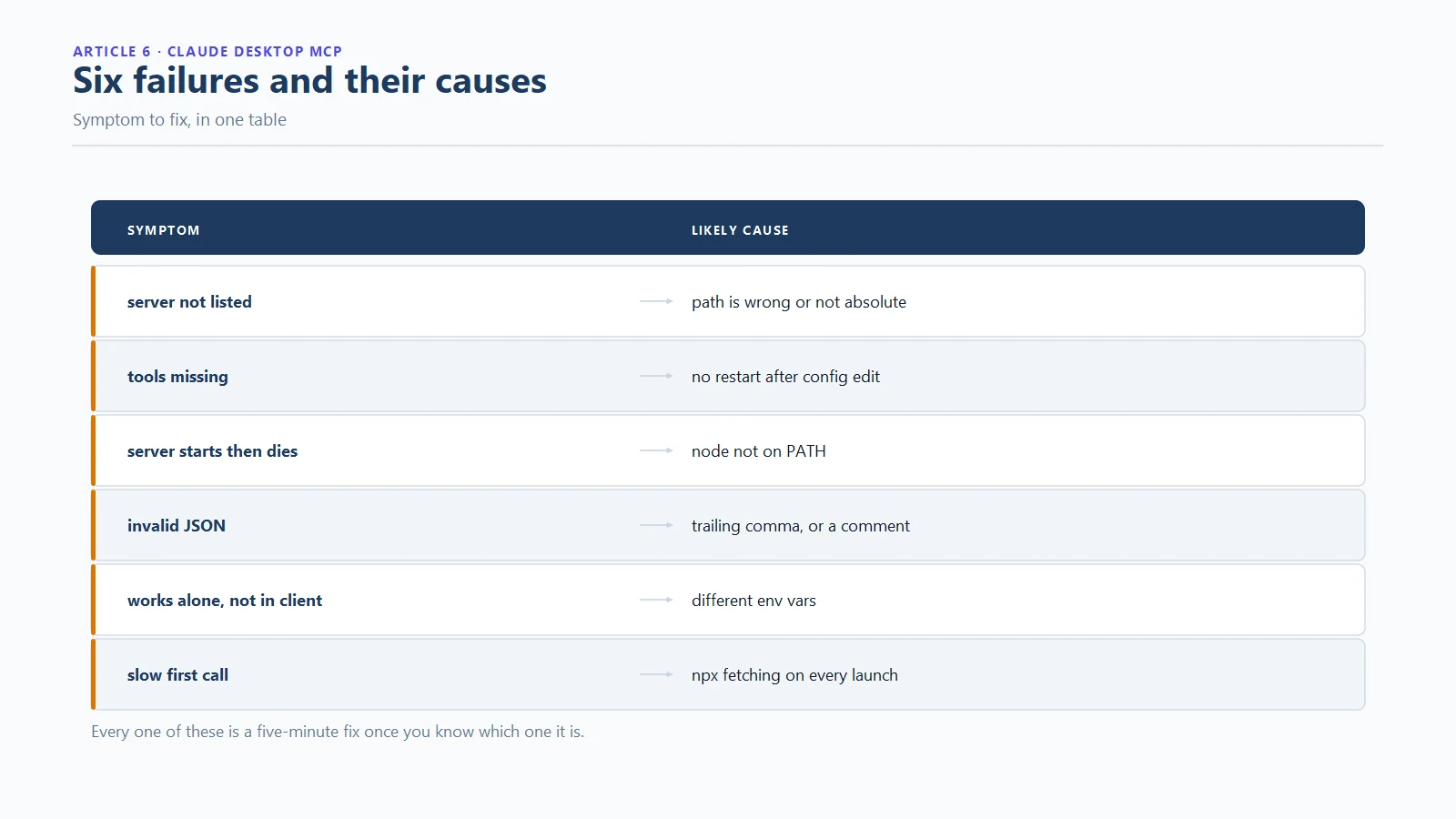
In a first-day Claude Desktop MCP setup, these six symptoms account for nearly every failure:
| Symptom | Likely cause | Fix |
|---|---|---|
| Tools icon never appears | Config file in the wrong location, or invalid JSON | Validate the JSON; confirm the exact path for your OS |
| Server shows red or failed | Command not found on PATH | Use the full path to the binary in command |
| Server spawns then exits | Wrong subcommand or missing init | Run the command manually in a terminal; fix what it reports |
| Tools listed but calls fail | Project not initialised, or wrong working directory | Run sovel-brain init in the project; restart the client |
| Works in terminal, not in client | Client GUI inherits a different PATH | Use absolute paths for both command and args |
| Changes to config do nothing | Client not fully restarted | Quit from the system tray, then relaunch |
The PATH row deserves emphasis because it is the most common of all. Desktop clients do not always inherit your shell’s PATH, so a command that works in your terminal can fail in the client. Absolute paths fix it permanently.

Adapting the configs to any stdio server
The three configs above differ only in where the JSON lives. The block itself follows one pattern for any local server: a command, an args array, and optionally an env object. A generic memory server launched through Node would look like this:
{ "command": "node", "args": ["/absolute/path/to/server.js"] }
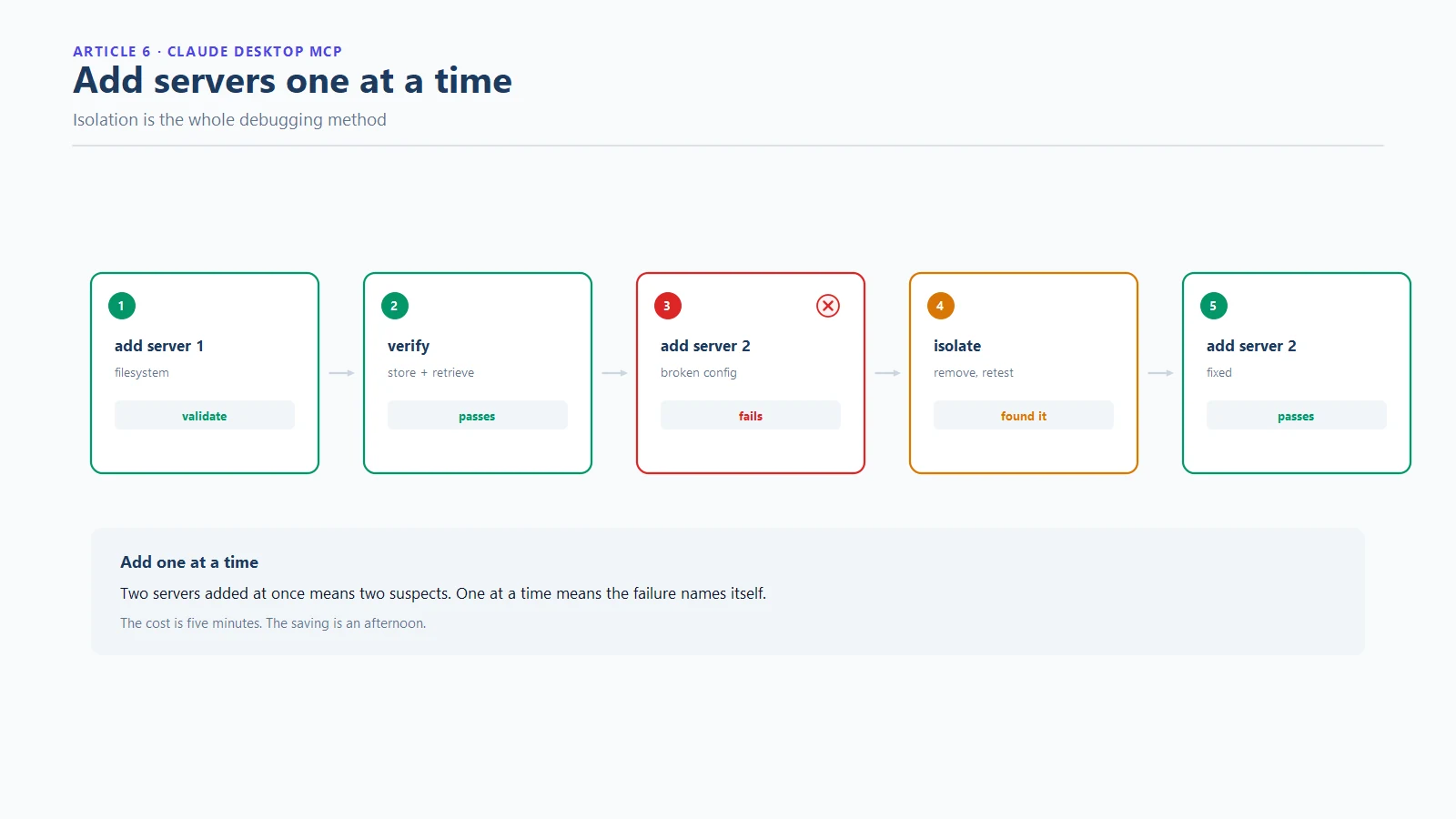
Two habits keep any Claude Desktop MCP setup healthy as it grows. Always use absolute paths, for the reasons in the error table. And connect one server at a time when debugging, because a broken server can block the client’s startup sequence and make every other server look guilty.
Adding a second server without breaking the first
Sooner or later you will add a second server, and the failure pattern is predictable: a comma error in JSON, or a new server that fails to spawn and drags the client’s startup down with it. Two rules prevent the mess. First, edit the config with a JSON validator open, because a trailing comma is invisible to humans and fatal to parsers. Second, connect one new server at a time and verify it before adding the next, so a failure has one suspect instead of five.
If a newly added server breaks every other server’s tools, the cause is almost always a spawn failure in the new entry. Remove it, confirm the others recover, then fix the new entry in isolation with the command run directly in a terminal.
Security notes for a local-first setup
A local stdio server keeps your data on your machine, which is the right default, but the setup still deserves two habits. Review what the server’s tools can do before granting them to a client that executes model requests: a memory server that writes files is more powerful than one that only reads its own store. And keep one memory server per concern, because a setup with duplicated memory layers produces contradictory context, a problem covered in depth in the token-cost article. One Claude Desktop MCP setup, one memory layer, one truth.
Frequently asked questions
Where is the Claude Desktop config file?
On macOS it is ~/Library/Application Support/Claude/claude_desktop_config.json; on Windows it is %APPDATA%\Claude\claude_desktop_config.json. Create the file if it does not exist, and restart Claude Desktop completely after editing it.
Why do my MCP tools not appear in Claude Desktop?
In order of likelihood: the JSON is invalid, the config file is in the wrong location, the server command is not on the client’s PATH, or the client was not fully restarted. Work through the error table above; the first three rows cover most cases.
Does the same config work in Cursor and Cline?
Yes. Both accept the same mcpServers block with a command and args, so one verified Claude Desktop MCP setup pattern serves all three clients. Cursor stores it in .cursor/mcp.json per project, and Cline manages it from its sidebar panel with an optional env object.
What is the difference between stdio and HTTP MCP servers?
A stdio server runs as a local child process and talks over standard streams, which keeps data on your machine. An HTTP-based server runs somewhere else and is reached over the network. For a Claude Desktop MCP setup with project data you care about, local stdio is the recommended shape, and it is what the configs in this guide use.
How do I verify the server actually works?
Three checks: store a fact through the client, retrieve it in the same session, and run the server’s health command, such as sovel-brain doctor, in a terminal to confirm the session was recorded. If all three agree, the connection is real.
Can I connect the same memory server to multiple clients?
Yes, and that is one of the advantages of a local server: the memory store lives outside the client, so Claude Desktop, Cursor and Cline can all read and write the same project memory. Connect them one at a time while debugging.
Connected, verified, done
A reliable Claude Desktop MCP setup comes down to three habits: exact file paths, absolute paths for the server command, and end-to-end verification instead of trusting the tools icon. With those, the same config block serves Claude Desktop, Cursor and Cline, and your memory layer becomes client-independent infrastructure rather than a per-app experiment. If you are still choosing the server to connect, the MCP memory server guide covers the token costs to compare, and the SOVEL Net-Routed Agentic OS product page documents the server used in these examples.