
Your Organization schema is appearing on the search results page. Your Product schema is firing on blog archive pages. Your Book schema is showing up on the homepage. None of these are visible to a visitor, and all of them are visible to Google.
Conditional schema markup is the mechanism that stops this. It is a set of rules that decides whether a given schema block is allowed to be output on a given page. The problem is that almost nobody documents it properly. Schema tools say “display rules” in the feature list and stop there, leaving you to discover the actual options by clicking around a settings screen.
This article names all 15 condition types shipped inside SOVEL Studio, explains what each one prevents, and walks through three worked examples. The conditions are the least-documented feature in the structured-data category, and they are also the feature that decides whether your markup behaves or leaks.
What Conditional Schema Actually Means
A schema block has two halves. The first half is the definition: which type, which fields, which values. The second half is the condition: where it is allowed to appear.
Most guides cover the first half exhaustively and skip the second. That is why so many sites end up with markup that is technically valid and practically wrong. A perfectly formed Organization block on a paginated archive page is still a wrong block, because the page it describes is not the entity the block claims.
A condition is a boolean test evaluated at render time. The WordPress Developer Resources document every built-in conditional tag at developer.wordpress.org/reference/functions/is_user_logged_in/, and WooCommerce adds its own page identifiers at woocommerce.com/document/conditional-tags/ for shop, product and cart pages. When WordPress is about to output the page, each schema definition asks: does this page satisfy my conditions? If yes, the JSON-LD is printed. If no, it is skipped entirely.
That “skipped entirely” is the important part. A schema block that fails its conditions does not print an empty block or a partial block. It prints nothing. That is what keeps your output clean.
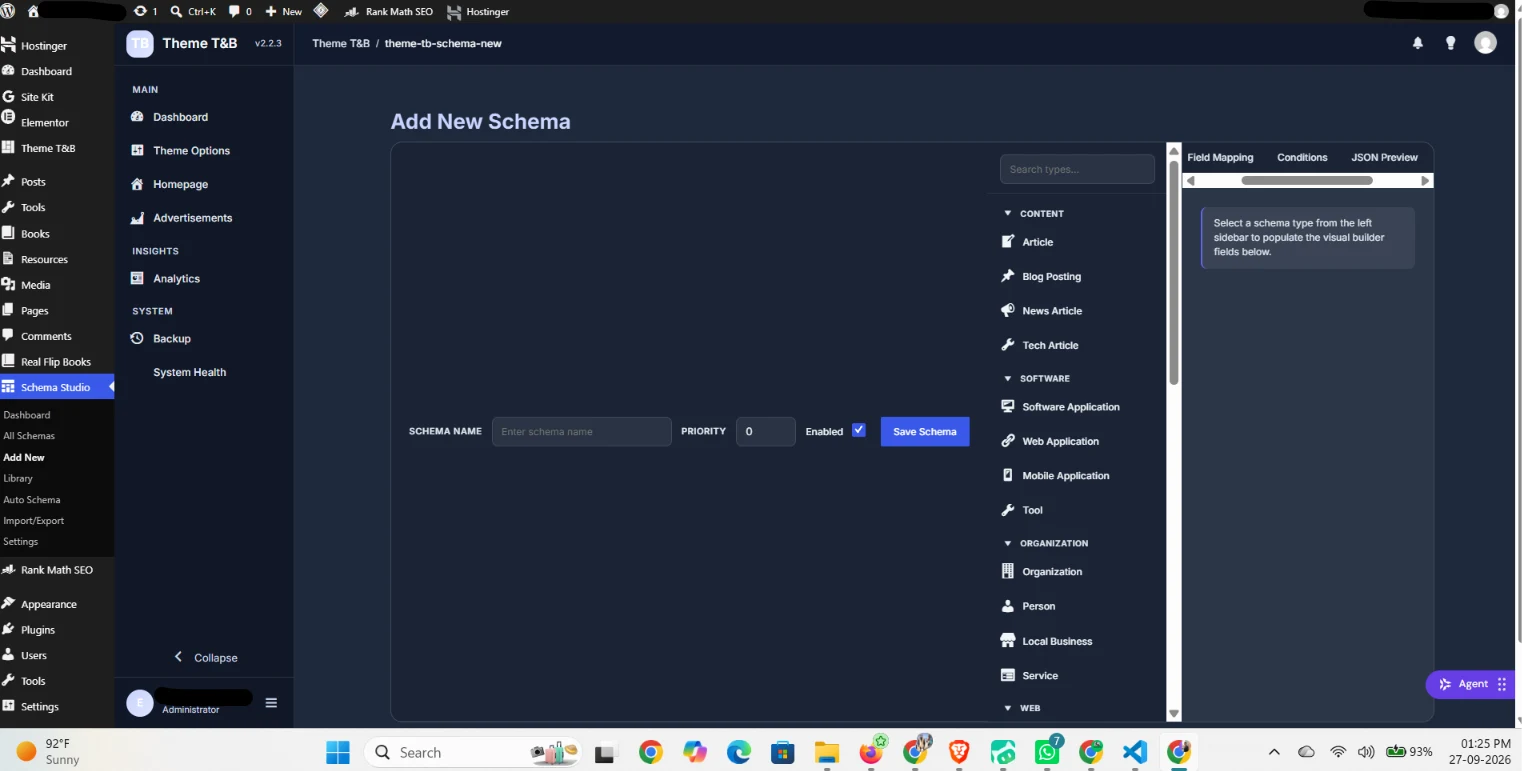
The screen above shows where conditions live: a tab beside Field Mapping and JSON Preview. You define the type first, then bind the fields, then declare where it is allowed to fire, then read the JSON before saving. Conditions are not an afterthought in that flow, they are the step that turns a definition into a placement rule.
The 15 Condition Types
Here is the complete list, with what each one does and the failure it prevents.
1. Post Type — limits a schema to one or more post types, such as post, page, or a custom type like tb_ebook. Prevents a book schema from firing on a blog post, and the reverse.
2. Singular View — fires only on a single item view: a single post, a single page, a single custom-type entry. Prevents detail-page schema from appearing anywhere that is not a detail page.
3. Archive View — fires only on archive listings. Useful for CollectionPage and BreadcrumbList, which describe a list rather than an item.
4. Taxonomy Archive — targets category, tag and custom-taxonomy archives specifically, separately from the general archive condition. Prevents a taxonomy archive from being treated as a plain archive when you need different markup.
5. Homepage — restricts output to the site front page. The correct condition for a homepage-specific WebSite or Organization block when you do not want it sitewide.
6. Search Results — matches the internal search results page. This is the condition you use as an exclusion, and it is the one most sites are missing. An Organization block with no exclusion will happily print on / ?s=query.
7. Author Archive — targets author listing pages. Prevents author archives from inheriting item-level schema that describes a book or a product rather than a person.
8. Logged In — fires only for authenticated users. Useful for member-only content that should not be indexed as public.
9. Logged Out — fires only for anonymous visitors. The more common choice, since search crawlers are logged out.
10. Mobile Devices — restricts output to mobile user agents. Rarely needed, but available for cases where a mobile layout exposes different content.
11. Specific Posts — targets a hand-picked list of post IDs. The precision tool for one-off pages that need unique markup.
12. Specific Categories — targets chosen categories by ID or slug. Prevents a category-specific schema from spilling across the whole site.
13. Specific Tags — the same, for tags.
14. WooCommerce Pages — targets shop, product, cart, checkout and account pages as a group. This is the condition that keeps Product schema inside the store instead of on every page.
15. URL Pattern — matches against the URL itself. This is the escape hatch that solves the cases the other fourteen cannot express, and it is the reason the list is useful rather than decorative.
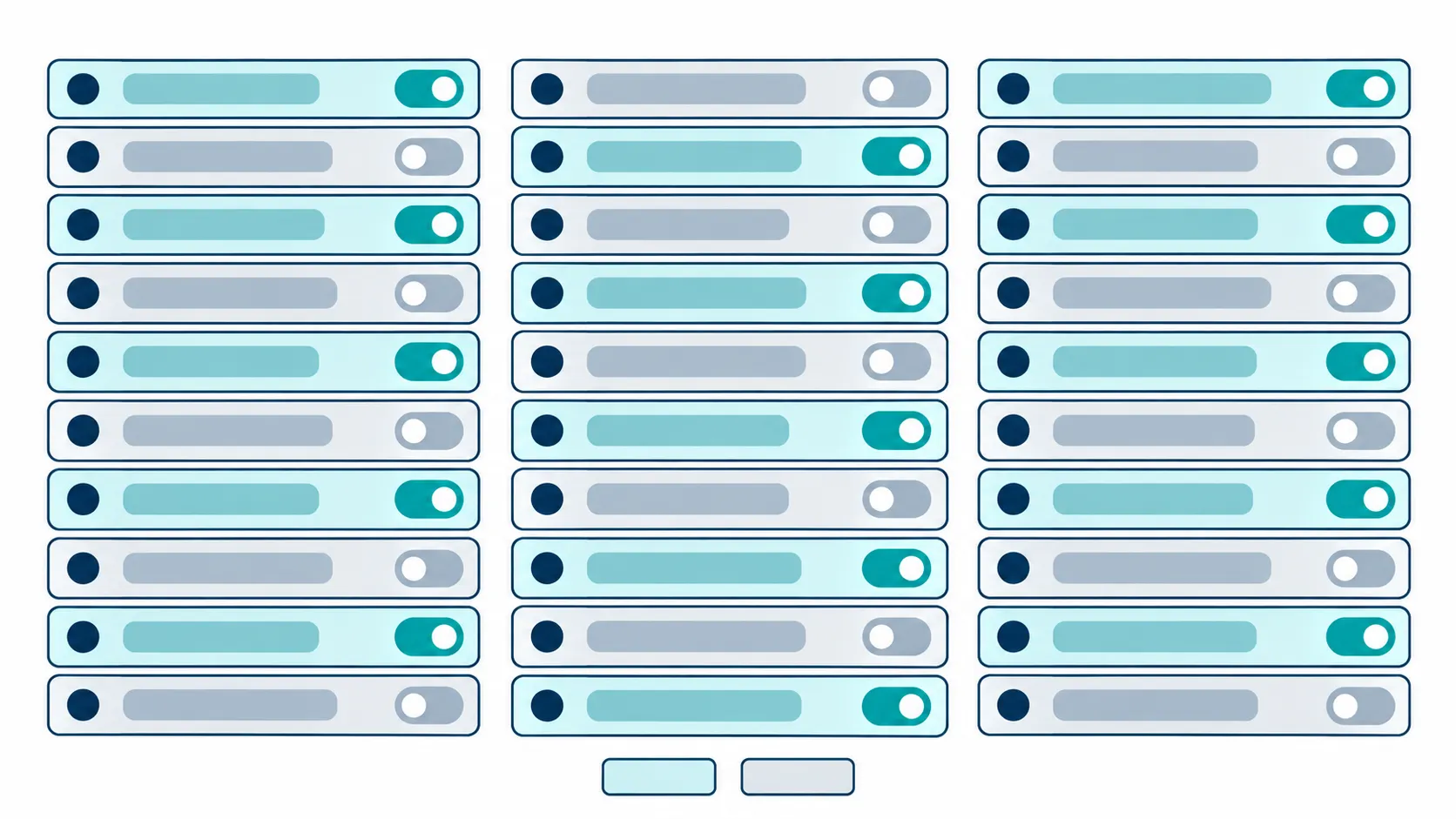
Fifteen conditions. Most sites will use four or five of them. The value is not in using all fifteen, it is in having the one you need when a specific page misbehaves.
Why URL Pattern matters more than it looks
Fourteen of the fifteen conditions describe a page by what WordPress knows about it: its type, its view, its taxonomy, its author. The fifteenth describes a page by its address.
That matters because real sites contain pages that are awkward to describe any other way. A /go/ redirect directory. A /tools/free/ sub-listing that is technically an archive but behaves like a landing page. A legacy URL structure that predates the current theme. For those, “match this path and exclude it” is the only rule that expresses what you mean.
The practical pattern is exclusion. Sitewide Organization schema with a URL Pattern exclusion for /search/ and /go/ is cleaner than trying to enumerate every page where it should appear.
Three Worked Examples
Abstract lists are easy to nod at and hard to apply. Here is what conditions look like on real pages.
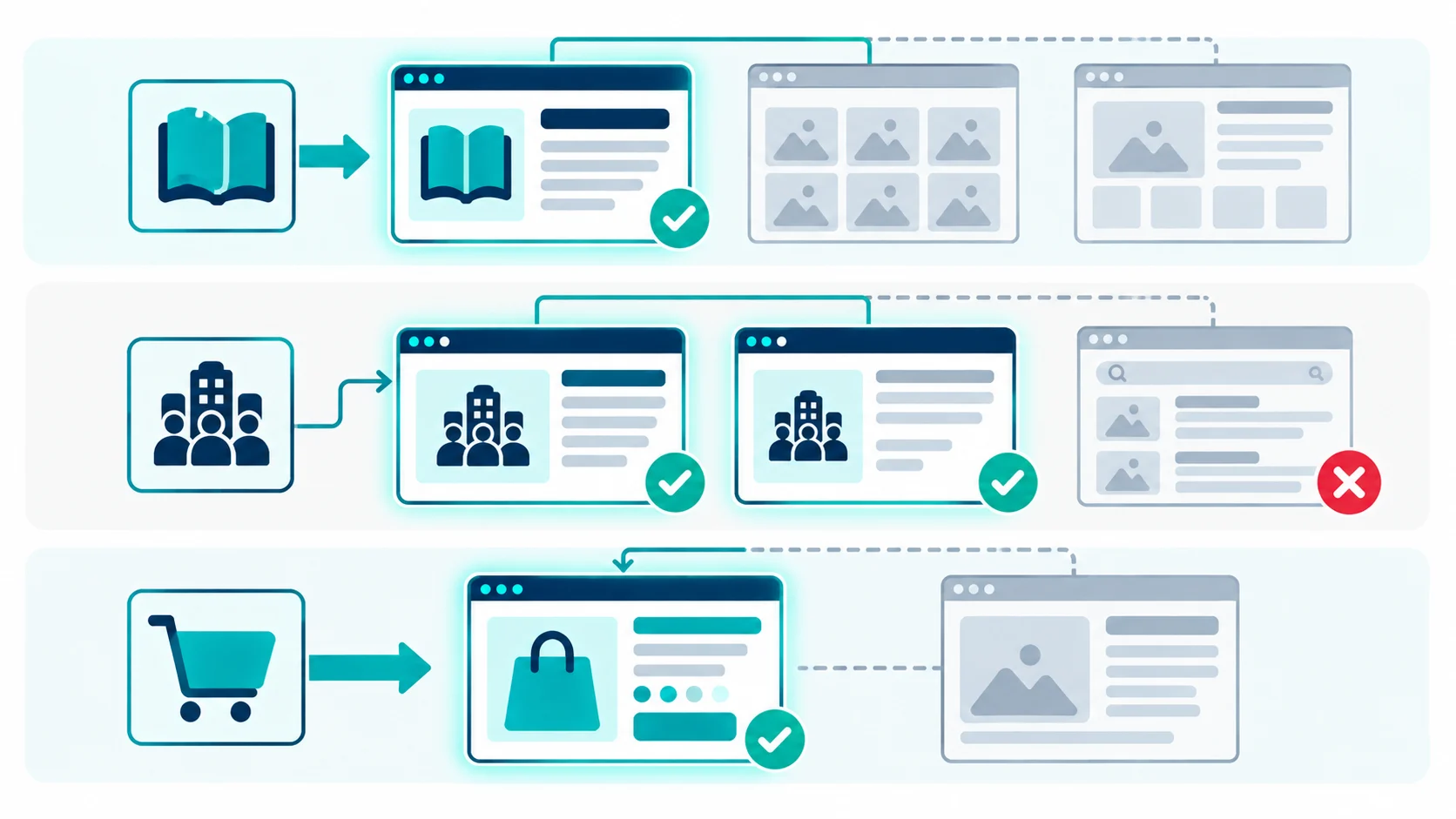
Example 1 — A Book schema that fires only on book singles
The goal is Book schema on every book detail page, and nowhere else.
- Post Type:
tb_ebook(the theme’s Books type) - Singular View: required
- Archive View: excluded
- Search Results: excluded
Why each rule is there: Post Type keeps it off blog posts and pages. Singular View keeps it off the /books/ archive, where a CollectionPage belongs instead. Archive exclusion is belt-and-braces on top of Singular View. Search Results exclusion stops a book schema from being printed on an internal search page that happens to return a book.
Result: /books/some-title/ carries Book JSON-LD. /books/ carries none. /?s=title carries none.
Example 2 — An Organization schema that is sitewide but never on search
The goal is Organization markup on every page, because the entity is the same everywhere, with two exceptions.
- Homepage, Singular, Archive, Taxonomy Archive: all allowed
- Search Results: excluded
- URL Pattern: exclude
/go/
This is the case where conditions are used almost entirely as exclusions. Organization schema is correct sitewide, so the conditions exist to carve out the two page types where it is noise: the internal search results page and the outbound redirect directory.
Result: Organization JSON-LD on real content pages, absent on /?s= and /go/*.
Example 3 — A Product schema that stays inside the store
The goal is Product markup on WooCommerce product pages only, and never on blog content.
- WooCommerce Pages: required
- Post Type:
product - Singular View: required
- Specific Categories: limit to the categories that are actually for sale
Why the extra category rule: a digital-product site often publishes free downloads and paid products in the same store. Restricting by category keeps Product schema on the priced items and lets you attach something else, or nothing, to the free ones.
Result: /product/some-ebook/ carries Product JSON-LD. Blog posts carry none, even if they mention a price.
The Three Failures Conditions Prevent
Conditions exist because of three specific problems, and each one has a signature.
Failure one: the wrong page type. Schema that describes an item appears on a listing. This is the most common, and it happens because a schema block was configured with no condition at all, which means it matches everything. The signature is Book or Product markup on an archive URL.
Failure two: the unintended page. Schema appears on a page type nobody thought about, usually search results, author archives or paginated URLs. This is the failure that survives review, because you check the pages you built and not the pages WordPress generates. The signature is Organization markup on /?s=.
Failure three: the duplicate claim. Two blocks describe the same entity on the same page, usually because one condition set is broader than another and they overlap. This is the failure that produces a Search Console warning, and Article 4 in this cluster covers it in full.
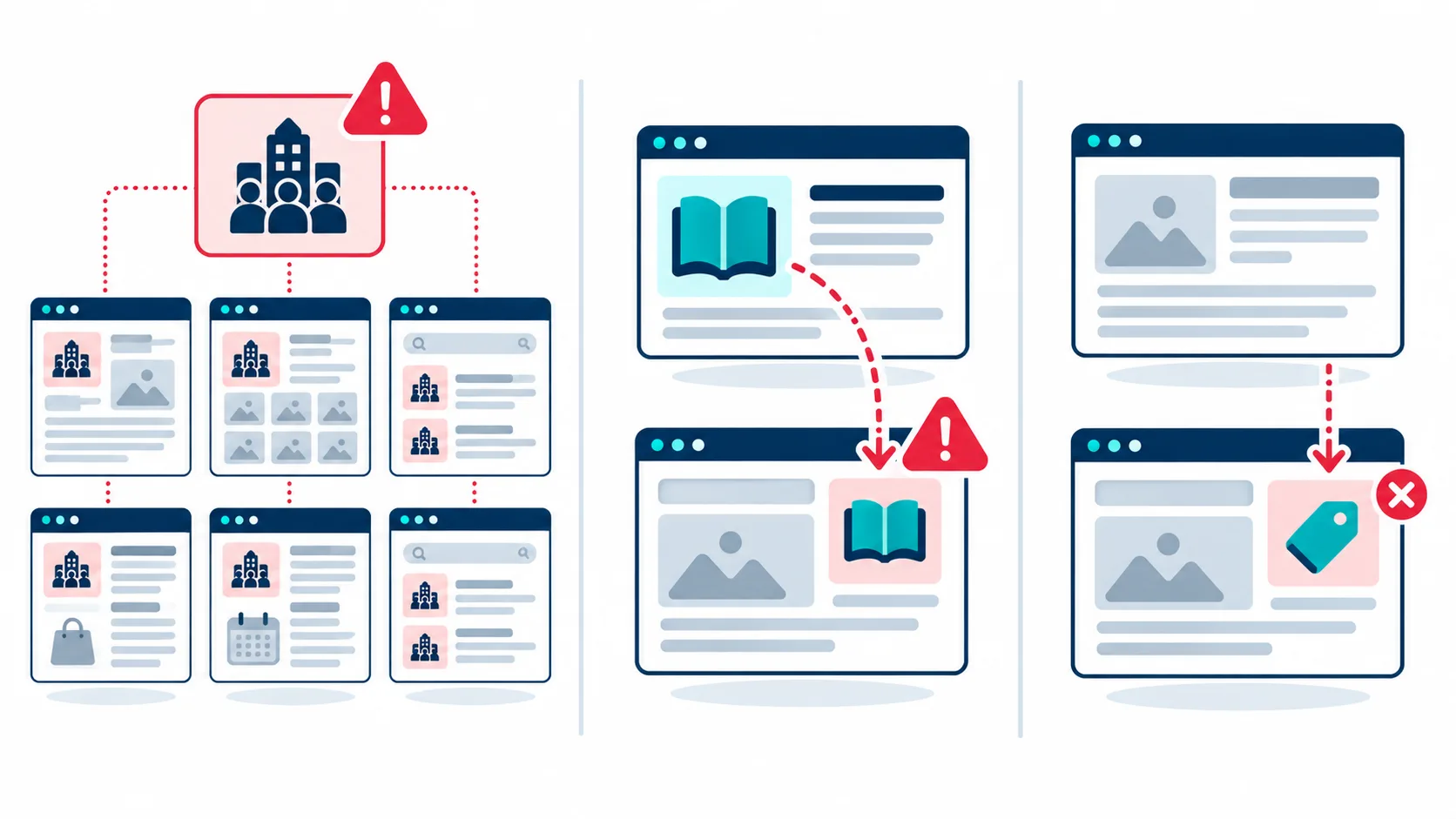
The first two failures are invisible to a visitor and visible to a crawler. The third is visible to both, eventually, in a report. All three are prevented by the same discipline: every schema definition gets at least one positive condition and, where relevant, one exclusion.
What Conditions Cannot Do
Conditions are powerful, and like every powerful setting they have edges worth knowing before you rely on them.
They cannot fix a wrong field. A condition decides where a block appears. It does not check whether the block’s author property is empty or its price is a string where a number belongs. Placement and validity are separate problems, which is why the JSON Preview tab matters as much as the condition tab.
They cannot repair a missing entity. If your site has no Organization block at all, no condition will produce one. Conditions are filters, not generators.
They cannot override a hard-coded block. If a plugin or a template part prints JSON-LD directly into the markup with no condition layer, the theme’s conditions do not reach it. That is the situation Article 4 in this cluster deals with, and it is why the fix there is ownership rather than placement.
They cannot guarantee eligibility. A condition can put Book schema on exactly the right URLs and Google can still decline to show a rich result, because eligibility depends on the type, the completeness of the properties, and Google’s current feature set. Conditions control placement. They do not control display.
They are evaluated at render time, so caching matters. If you change a condition and the page still serves the old markup, the page cache is usually the reason rather than the condition. Clear the cache before concluding a rule did not work.
They cannot express a rule about content, only about context. A condition can say “on book singles”. It cannot say “on book singles whose price field is filled”. Where you need the second kind of rule, the answer is a separate schema definition with its own condition set, not a smarter condition. Fifteen conditions cover placement thoroughly and content logic not at all, and that boundary is worth respecting rather than fighting.
Knowing those limits is what separates a condition set that solves problems from one that creates the illusion of a fix. The next section is the order of operations that puts them to work safely.
A Practical Order of Operations
If you are fixing an existing site rather than building a new one, this sequence avoids the common trap of breaking working markup.
- Inventory first. List every schema block currently output, and on which URLs. Google’s Rich Results Test reads a URL and reports every block it finds. Do this for a single post, an archive, the homepage, a search results page and a product page.
- Identify the narrowest block. The block with no conditions is almost always the source of the leak. Give it the conditions it should have had.
- Add exclusions before narrowing positives. Excluding Search Results and the redirect directory is safe and immediate. Narrowing a positive condition can remove markup from pages that were relying on it, so do that second and check after each change.
- Verify on the real URLs. Re-run the test on the same five URL types. Compare against your inventory.
- Snapshot before you finish. Take a backup once the output is correct, so the working state is recoverable.
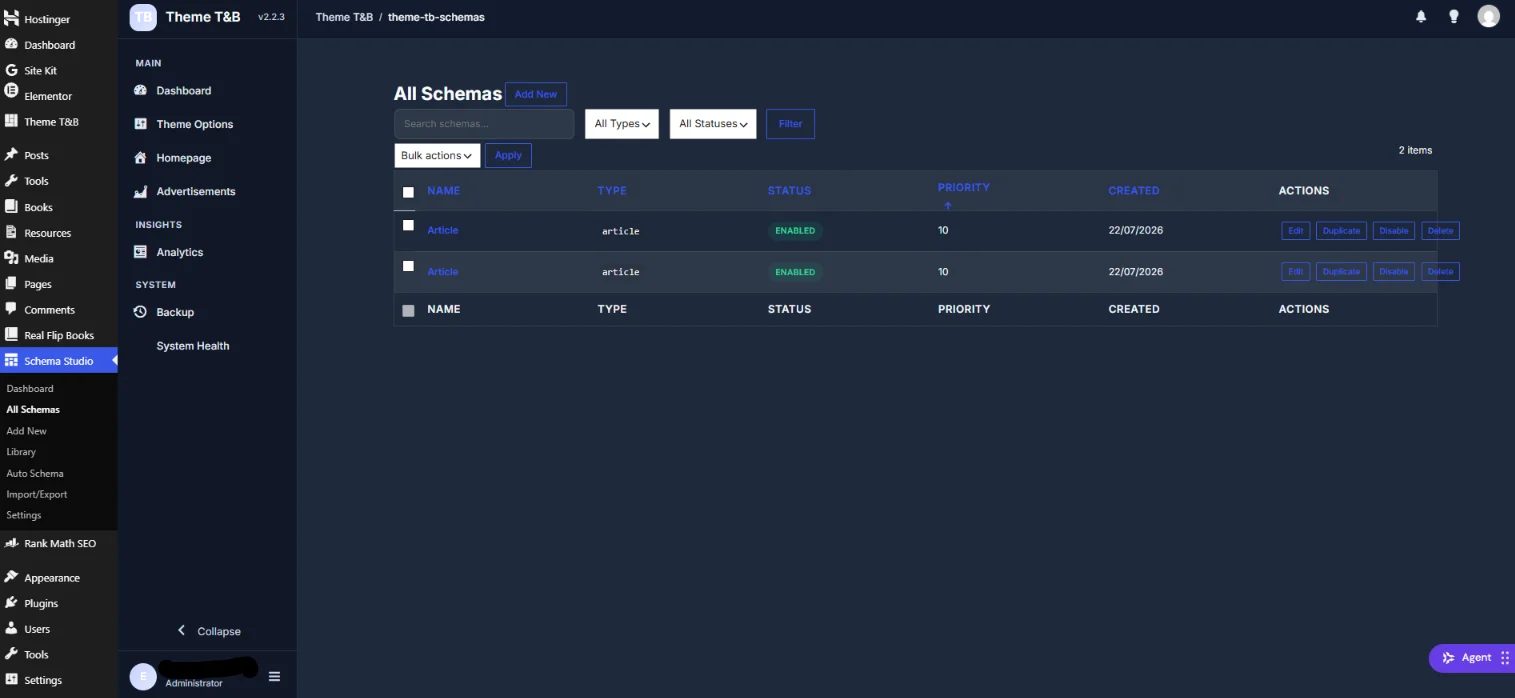
The list above is the operational view: every schema with its type, status and priority, and per-row actions to edit, duplicate, disable or delete. When a block is misbehaving, disabling it takes effect immediately, which means you can stop a leak before you have finished diagnosing it.
Frequently Asked Questions
What is conditional schema markup?
It is the set of rules that decides whether a schema block is output on a particular page. The definition says what the markup contains; the conditions say where it is allowed to appear. A block whose conditions fail prints nothing at all.
Why does my schema show on the wrong pages?
Almost always because the block has no conditions, which means it matches every page. The second most common cause is a condition set that is too broad, such as allowing Archive View when only Singular View was intended.
Can I target schema by URL pattern?
Yes, and it is the condition that solves the cases the other conditions cannot express. URL Pattern matches against the address itself, which is the practical way to exclude paths like /go/ or a legacy URL structure.
How do I stop schema on archive pages?
Add Singular View and exclude Archive View. If the archive is a taxonomy archive, exclude that separately, because a taxonomy archive is treated as its own condition rather than as a general archive.
Does conditional schema work with WooCommerce?
Yes. A WooCommerce Pages condition targets the shop, product, cart, checkout and account pages as a group, so Product schema can be confined to the store. Combining it with a post-type condition and a category limit gives you precise control over which products carry markup.
Can one page carry more than one schema type?
It can, and often should. A single product page can carry Product plus BreadcrumbList plus Organization. The rule is not a maximum count, it is one entity per type. Two Product blocks on one page is a conflict; Product plus Breadcrumb plus Organization is a normal, well-formed page.
What happens if two schema blocks overlap?
Both may be output, and search tools may report the overlap as a duplicate or conflicting entity. Overlap is usually caused by one block having broader conditions than another. The fix is to narrow one of them so each entity has exactly one owner per page.
Where to Read Next
This article sits inside a five-article cluster about structured data on a WordPress site. The flagship piece covers the cost and ownership case for a WordPress theme with schema markup. The education piece explains the 35 WordPress schema types and which 7 actually win rich results. The problem-solving piece covers the Rank Math and Yoast schema conflict. The site-type piece covers the theme for a tools and ebook website.
If you want the primary sources rather than a summary, Google Search Central publishes its structured data general guidelines, the WordPress conditional tag reference documents how templates decide what they are rendering at developer.wordpress.org, and the WooCommerce documentation explains product and shop page structure.
Word count: 2,526