
—
To embed pdf on website pages means placing a PDF (Portable Document Format, the standard file type for finished documents) so that visitors can read it inside the page instead of downloading it first.
The intent is simple, yet the results vary widely. Some embedded documents open instantly and read well on a phone. Others freeze the page, dump a multi-megabyte file onto every visitor, or break entirely on mobile. The difference rarely comes from the document itself. It comes from how the embedding was done.
This article walks through five mistakes that appear again and again when teams embed pdf on website pages, and gives a plain fix for each. Every fix is something you can check yourself, without hiring a developer.
What actually happens when you embed pdf on website pages
Before the mistakes, one minute on mechanics, because most of them follow from it. The way you embed pdf on website pages shapes every result that follows.
An embedded PDF is not part of your page. It is a separate file that the browser fetches and hands to a viewer. That viewer is sometimes built into the browser, sometimes a script on your page, sometimes a third party service. Which of those three is doing the work decides everything that follows.
When the viewer is built into the browser, the document is handed off to code you do not control and cannot style. It usually works on desktop and behaves unpredictably on mobile.
When the viewer is a script on your page, you control the appearance and the behaviour, and you carry the cost of loading that script.
When the viewer is a third party service, the document travels to a server you do not own. That is fine for some cases and unacceptable for others.
Knowing which of the three you have chosen is the difference between a page that works and a page that surprises you in three months.
Mistake 1: Serving the full file to every visitor
The most common mistake is also the least visible, and it is the first thing to check when you embed pdf on website pages. When you embed pdf on website pages using a plain object tag or an iframe pointing at the raw file, the browser downloads the entire PDF before it can show anything.
A four-page flyer might weigh 300 kilobytes and cause no trouble. Scale that up and the numbers stop being friendly, which is why size is the first check before you embed pdf on website pages. A fifty-page catalogue exported at print resolution can weigh tens of megabytes. Every visitor pays that cost, whether they read one page or all of them.
The cost is not abstract, and it grows with every file you embed pdf on website pages with at full print quality. Every megabyte is data on someone’s mobile plan and seconds on a weak connection. Page weight directly affects whether a visitor stays long enough to read.
Where the weight actually comes from
Most heavy PDFs are heavy for avoidable reasons.
High resolution images. A photograph saved for print at 300 dots per inch (the setting meant for physical printing) carries far more detail than a screen can display. Reducing image resolution to 150 or lower often cuts the file size by three quarters with no visible loss on a monitor.
Embedded fonts. A document that embeds several full font families can carry megabytes of type data. Subsetting, which means embedding only the characters actually used, reduces this sharply.
Accumulated drafts. Files that grew over many edits often carry hidden pages, old versions of charts, or flattened layers from earlier versions. A clean re-export from the source document removes them.
The fix in three steps
First, check the actual file size before embedding. If the file is larger than a few hundred kilobytes, reduce it. Export at screen resolution rather than print resolution. Screen reading does not need print-grade detail.
Second, compress images inside the source document before exporting, not after. This one change is often the difference between a page that opens instantly and one that stalls. Compression applied at export is cleaner than compression applied to a finished file.
Third, split very large documents. A two hundred page manual does not need to be one file. Split it by section and embed each section where it is relevant. A visitor looking for chapter six should not download chapters one through five to reach it.

Mistake 2: Ignoring the mobile experience
Many embedding methods work well on a desktop browser and fail on a phone. The PDF viewer built into some desktop browsers does not exist on every mobile browser. Some mobile browsers trigger a download instead of displaying the file, which leaves the visitor stranded.
Most web traffic is mobile, so a document that only works on desktop fails for most visitors. Every time you embed pdf on website pages, assume the first reader is holding a phone. The mistake is rarely a deliberate choice. It is testing only on the machine in front of you.
Testing on a real phone
Test the embedded document on an actual phone before publishing. This single step catches more failures than any other when you embed pdf on website pages. Three checks matter.
Does the document open at all on the phone, or does it download?
Can the visitor pinch to zoom and still read the text?
Does the rest of the page remain usable, or does the embedded viewer take over the whole screen?
A fourth check matters for text-heavy documents. After zooming in, can the visitor move around the page without fighting the scroll? Some embedded viewers capture every swipe, which traps the visitor inside the document and makes leaving feel like a bug.
The layout question
If the mobile experience fails, consider offering the document in a responsive format or using a viewer that adapts to screen width. The MDN documentation on responsive design explains why a fixed-width layout breaks across devices.
A document designed for A4 paper (the standard page size for print) has a fixed width that never matches a phone screen. The viewer’s job is to make that mismatch harmless: fit the width, allow zoom, and keep navigation obvious. A viewer that instead shows a tiny full page in the middle of the screen has failed at its one job.

Mistake 3: Embedding documents that should be gated
Not every PDF should be open to everyone. Price lists, internal reports, and draft contracts sometimes end up embedded on public pages by accident. Once a file has been served publicly, search engines may have already indexed it, and removing it later does not undo the exposure.
This mistake is quiet because everything appears to work. The document renders, the page looks complete, and nobody complains. The problem is only visible in hindsight, when a private price list surfaces in a search result.
Four access levels to choose between
Before you embed pdf on website pages, decide who should see the document. The choice falls into four levels.
Public. Anyone with the link can read it, which is the default most people assume when they embed pdf on website pages. Right for brochures, public reports, and documentation.
Sample then gate. The first few pages are open and a form appears later. Right for lead generation, where the document is the incentive.
Unlisted. The document is reachable only by people who have the exact link. Right for client-specific material.
Restricted. Only named or logged-in people can reach it. Right for paid material and anything confidential.
A raw file link supports only the first level, which is the trap most teams fall into the first time they embed pdf on website pages. A viewer with access rules supports all four, which is why the choice of embedding method is really a choice about control.
The gate placement question
If the document is a sample meant to generate inquiries, the embedding should include a gate at the right point, after the visitor has seen enough value to want more.
A gate on page two asks for an email before proving anything. If the purpose is lead capture, embed pdf on website pages with the gate placed after real value. A gate on page eight asks after the visitor has already decided the document is worth finishing. The second converts better and annoys fewer people, and it costs nothing to place the gate later.

Mistake 4: Losing the document in search results
When you embed pdf on website pages, remember that an embedded PDF is harder for search engines to understand than an HTML page. The text inside the file may or may not be indexed depending on how it is served, and the embedded viewer itself contributes no context.
This matters because a document nobody can find is a document nobody reads. Search engines, and increasingly the AI assistants that answer questions on a visitor’s behalf, need text they can read and quote. An embedded viewer gives them very little.
The HTML summary habit
If the document matters for search visibility, keep a plain HTML summary on the same page. Four sentences cover most cases.
What the document is. A catalogue of industrial fittings, updated in 2026.
Who it is for. Procurement managers comparing suppliers.
What it contains. Forty pages of specification tables, part numbers, and lead times.
What to do next. Download it, or request a quote with the part numbers.
That summary gives search engines and AI assistants something to cite, and it helps visitors decide whether opening the document is worth their time. It also gives the page value even for visitors who never open the file.
Mistake 5: No maintenance plan
Documents change. Prices are revised, terms are updated, and versions accumulate. An embedded viewer that points at an old file shows outdated information as confidently as current information, and visitors have no way to tell the difference.
Two habits prevent this. First, keep one canonical location for each document and embed from there, so an update in one place reaches every page. Second, review embedded documents on a schedule, the same way you review page content. If you embed pdf on website pages across many products, assign one owner for the review. An outdated catalogue embedded on a product page is worse than no catalogue, because it actively misleads buyers. If you embed pdf on website pages often, put the review date in your calendar alongside the document owner’s name.
There is a third habit worth adding. Put a visible date on the document itself. A line such as “updated November 2026” tells every reader how current the material is, and it makes staleness obvious to you before a customer notices it first.
What a good embedded viewer actually does
It helps to know what to look for, so here is the short version of a viewer that behaves properly when you embed pdf on website pages. These five habits separate a useful tool from a frame that merely holds a file.
It fits the page width instead of forcing the original page size. This is the first thing to confirm whenever you embed pdf on website pages for a mobile audience. A document designed for A4 paper never matches a phone screen, and the viewer is the layer that resolves the mismatch.
It loads lazily, so the browser fetches pages on demand. That matters most when you embed pdf on website pages that run to many sheets. Pages arrive as the visitor reaches them, so a fifty page catalogue does not punish someone who reads two pages.
It keeps the rest of the page usable. Scrolling past the document should work, and leaving the viewer should not feel like escaping.
It survives a failure. If the viewer cannot load, the visitor should see a plain download link rather than a blank frame. A fallback costs one line of markup and rescues every browser the viewer does not support.
It tells you something. Basic numbers, such as how many people opened the document and how far they read, are the difference between guessing and improving. Without them, every change you make is a guess dressed up as a decision.
A viewer that does all five is doing its job. A viewer that does four is usually acceptable. A viewer that does two is a frame with extra steps. When you embed pdf on website pages, ask for those five habits by name.
The cost of getting it wrong
It is worth naming what a badly embedded document actually costs, because the damage is spread out and easy to ignore.
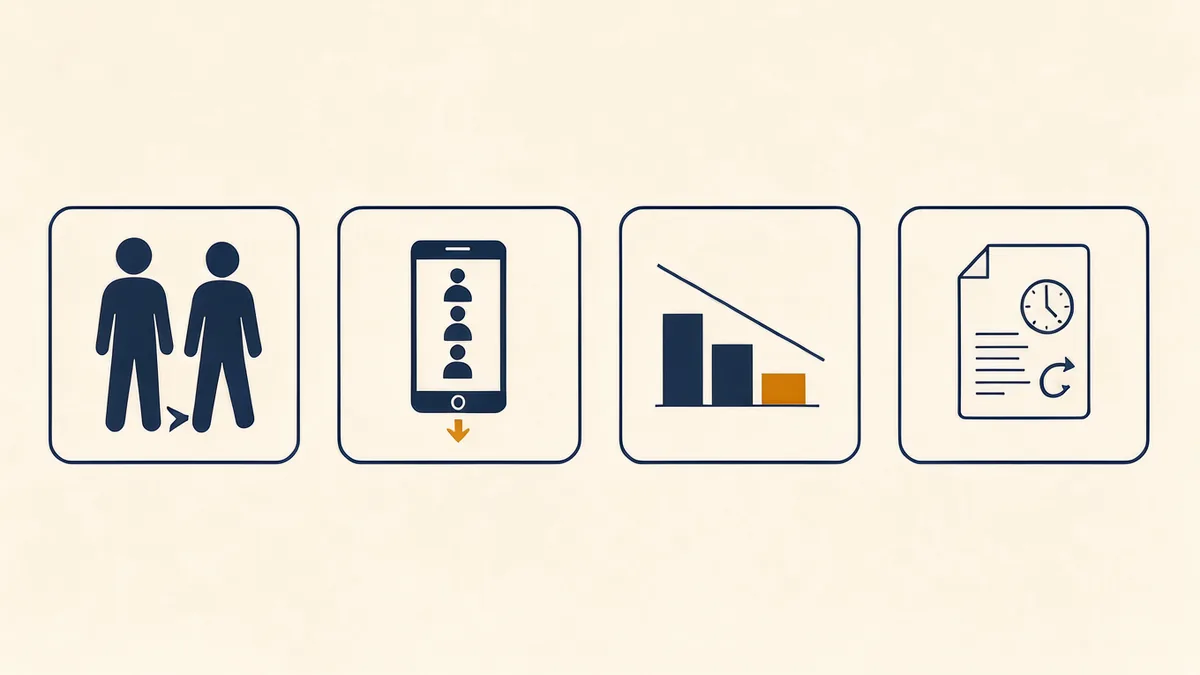
Visitors on weak connections leave before the file arrives, and they do not come back to try again.
Mobile visitors who hit a download prompt often abandon the page entirely, taking their attention to a competitor who made it easy.
A page that loads slowly loses position in search over time, which reduces the visitors who ever see the document.
An outdated file misleads the few visitors who do read it, which is worse than saying nothing.
None of those failures announce themselves. The page still renders, the link still works, and nothing looks broken. That is exactly why the five checks above matter. They make invisible problems visible before a customer finds them.
When a plain link is the better answer
Embedding is not always right. If the document is long, print-oriented, or rarely accessed, a plain download link with a short HTML description may serve visitors better. The visitor decides when and where to open it, and the page stays fast.
If the document is a brochure or catalogue whose presentation matters, a flipbook style viewer on your own site can be the stronger choice. The guide to a PDF flipbook plugin for WordPress covers that option in detail.
PDF flipbook plugin for WordPress
For a page turning reading experience on your own domain, SOVEL RealFlip handles the separate case where the document should feel like a book rather than a static frame.
A short decision path
Before you embed pdf on website pages, run this short sequence. It takes about ten minutes and prevents most of the problems described above.
1. Check the file size and reduce it if needed.
2. Test on a real phone, not just a desktop browser. This is the step most teams skip.
3. Decide who should see the document and whether a gate is needed.
4. Add an HTML summary so the document is findable after you embed pdf on website pages.
5. Set a review schedule and put a date on the document.
Following these five steps avoids the five mistakes above, and each step takes minutes rather than days. Teams that embed pdf on website pages regularly turn this into a short checklist they run before every publish.
What a real buyer found
One piece of outside evidence, because a guide that only quotes itself is not worth much. This review is on the public Trustpilot page for sovel.pro.
> “156 Optical Leads in 3 Minutes and 45 Seconds: 63 of My First 72 Contacts Placed Orders”
>
> Krazy Khan, optical frames supplier, Annamayya district, Andhra Pradesh. Rated 5 out of 5 stars.
The numbers are specific. The run produced 156 business leads with public phone, email and social contacts. From the first batch of 56 shops, 49 placed confirmed orders. Across 72 businesses contacted, 63 placed orders, three at Rs 50,000 to Rs 1,20,000 each.
The reviewer is careful about one thing, and it should be repeated here. The software did not generate sales. He made the calls, visited the shops, presented the frames, and followed up. The tool did the discovery and research quickly. He did the selling.
That is the honest version of what any tool can do. It is also the version worth trusting.
“156 Optical Leads in 3 Minutes and 45 Seconds: 63 of My First 72 Contacts Placed Orders”
Krazy Khan, optical supplier, Annamayya district, Andhra Pradesh
Where to go next
If the document deserves a reading experience rather than a frame, the guide on a page turning PDF reader covers the heavier option and when it earns its weight.
Common questions
What is the simplest way to embed pdf on website pages?
For a small, public document, an iframe or object tag pointing at the file is the simplest method. It is the route most people take the first time they embed pdf on website pages. It works when the file is light, access is open, and mobile viewing has been tested. Anything beyond that case benefits from a dedicated viewer.
Should I use an embedded viewer, a flipbook, or plain HTML?
Three different jobs. An embedded viewer keeps the original layout and is quick to set up. A flipbook turns the document into a page turning reading experience, better when the file is meant to be read like a publication. Plain HTML loads fastest and is fully indexable, which suits text-heavy material that needs to rank. Choose by what the visitor must do with the document, not by which is easiest to install.
The short version
The five mistakes share one root. Each of them comes from treating embedding as a design decision rather than a delivery decision.
File size, mobile behaviour, access control, search visibility, and maintenance are not aesthetic choices. They decide whether the document reaches a reader at all. A beautiful frame around a file that never loads helps nobody.
To embed pdf on website pages well, the work is mostly preparation: a light file, a tested mobile view, a deliberate access decision, an HTML summary for search, and a maintenance habit. The embedding method itself is the small part.
Teams that skip the preparation get a page that looks finished and performs poorly. Teams that do it get a document that visitors actually read.
If you only need a simple utility for a quick document task, the free tools cover that without a licence.