
—
A page turning pdf reader is a tool that opens a PDF (Portable Document Format, the standard file type for finished documents) and lets a reader move through it with a curl of the page instead of a scroll of the mouse.
That one change does more than it sounds. A document that feels like a book gets read. A document that feels like a wall of scrolling text gets closed.
This article is for anyone who has a PDF worth sharing. A brochure, a catalogue, a report, a course workbook, a magazine issue. You have probably looked at a few page turning pdf reader options already and noticed that they all promise the same thing. Smooth pages. Realistic sound. Mobile ready. Beautiful.
Promises are cheap. This guide gives you six tests you can actually run, in twenty minutes, before you spend money or install anything. No jargon without explanation. Every test is something you can see with your own eyes.
By the end you will know which page turning pdf reader suits your case, which one will quietly break it, and where the real cost sits.
What a page turning pdf reader actually does
Strip away the marketing and a page turning pdf reader has four jobs.
It renders the PDF. The file you already made in Word, Canva (a design tool), InDesign, or Google Docs has to display correctly in a browser. Fonts, colours, images, page order, all of it.
It animates the turn. When a reader clicks or swipes, a corner lifts, the page curves, and the next spread arrives. Good versions make this feel physical. Bad versions make it feel like a slideshow with extra steps.
It controls access. Some readers should see the whole document. Others should see a sample, then a form. A page turning pdf reader often handles who sees what, and when.
It keeps the file yours. Your PDF sits somewhere. On your server. On their server. Or split into images. Where it sits decides who controls it, how fast it loads, and what happens if you stop paying.
Most buyers only check job two, the animation, because that is the pretty one. Jobs one, three, and four decide whether the thing actually works for your business.
There is one more thing worth stating plainly. A page turning pdf reader is a presentation layer. It does not improve your PDF’s contents. If the document is thin, a beautiful turn will not save it. If the document is strong, the turn helps people finish it.

Test 1: Does it read the PDF you already have
This is the test that quietly fails more often than any other, and you can run it in five minutes.
Open your PDF and find its weakest page. Not the cover. The page with the table, the chart, the small print, or the non-English characters.
Then load that same file in the candidate reader and check four things.
Fonts. Custom fonts are the classic break. Your PDF embeds them, but a cheap reader may swap in a fallback and your careful typography turns into Arial with strange spacing.
Tables. Wide tables are where readers crack. Columns collapse, text wraps into a column one character wide, and the meaning dies.
Links inside the document. A table of contents with clickable entries is normal in a PDF. Many readers render those links as dead text. Test one.
Text selection. Can a reader highlight and copy a sentence? This matters for contracts, reports, and anything a reader might want to quote.
If any of those four fail, stop. No amount of smooth animation answers for a document nobody can read.
If you are unsure what to load, use a real file from your own work. A sample everybody ships is testing nothing. Your PDF is the only honest test.
Test 2: Does the turn feel like a page, or like a slide
Here is where most decisions get made on feeling alone, which is not wrong. Feeling is the point. But test it properly.
Open the reader on the device you actually expect readers to use. Most traffic is mobile, so test mobile first, then desktop.
Watch for these specific tells.
Weight. A real page has resistance. It starts slow, speeds through the middle, lands with a slight settle. A good reader mimics that arc. A cheap one moves at constant speed, which reads as robotic even if you cannot say why.
Corner behaviour. Drag a corner and let go halfway. Does the page fall forward or spring back to where it was? Both can be correct, but it should be deliberate, not random.
Shadow and depth. Page curls need a shadow underneath to look real. Without it the page looks like a flat sheet sliding over another flat sheet. Look for the shadow, not just the curve.
Sound. Some readers offer a paper sound. It is optional and should always stay optional. A reader on a train with no headphones will not thank you.
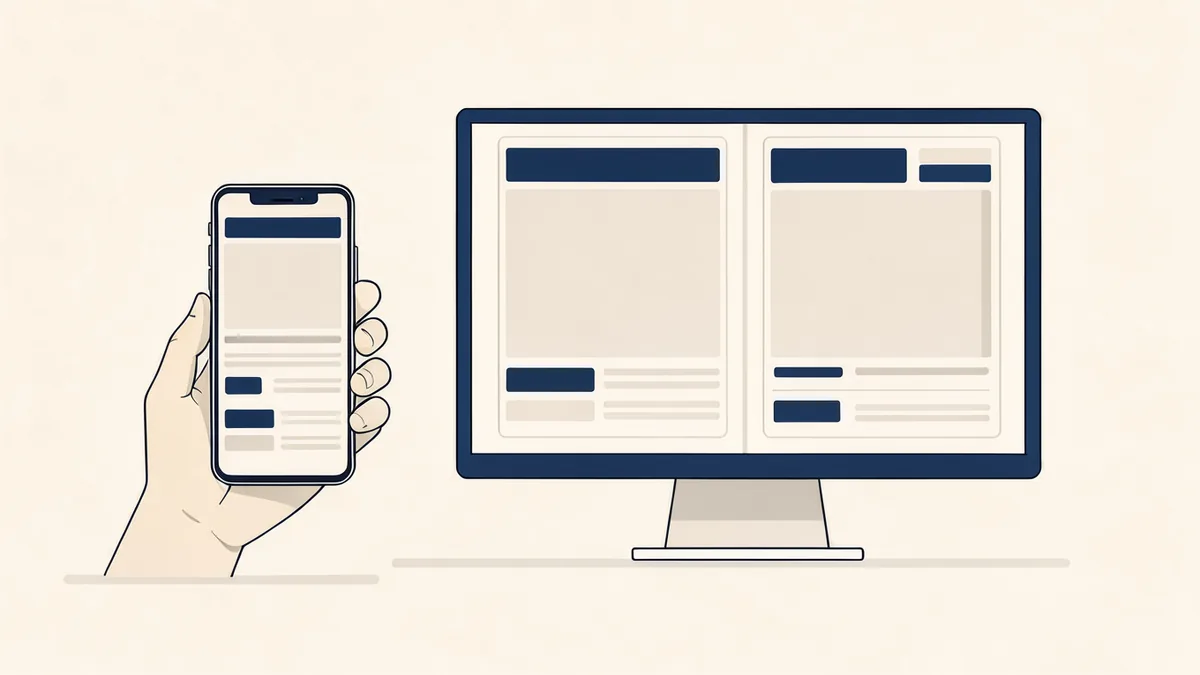
Double page spread. On desktop, a book shows two pages side by side. On mobile, one. A reader that forces two pages onto a phone gives you two unreadable slivers.
That last one is worth its own moment. Zoom in on a phone with a two page spread and you will see what I mean. The reader has optimised for how the file looks in a screenshot rather than how it reads in a hand. The MDN guide to responsive design explains why a layout built for one screen width rarely survives another.
Test 3: What happens on a slow connection
Nobody tests this, and almost everybody should.
Throttle your connection. If you use Chrome (Google’s browser), open the developer tools, find the network panel, and set the speed to slow 3G (third generation mobile data, the slow setting many people still live on). Then load the reader again.
Three outcomes are possible, and they matter.
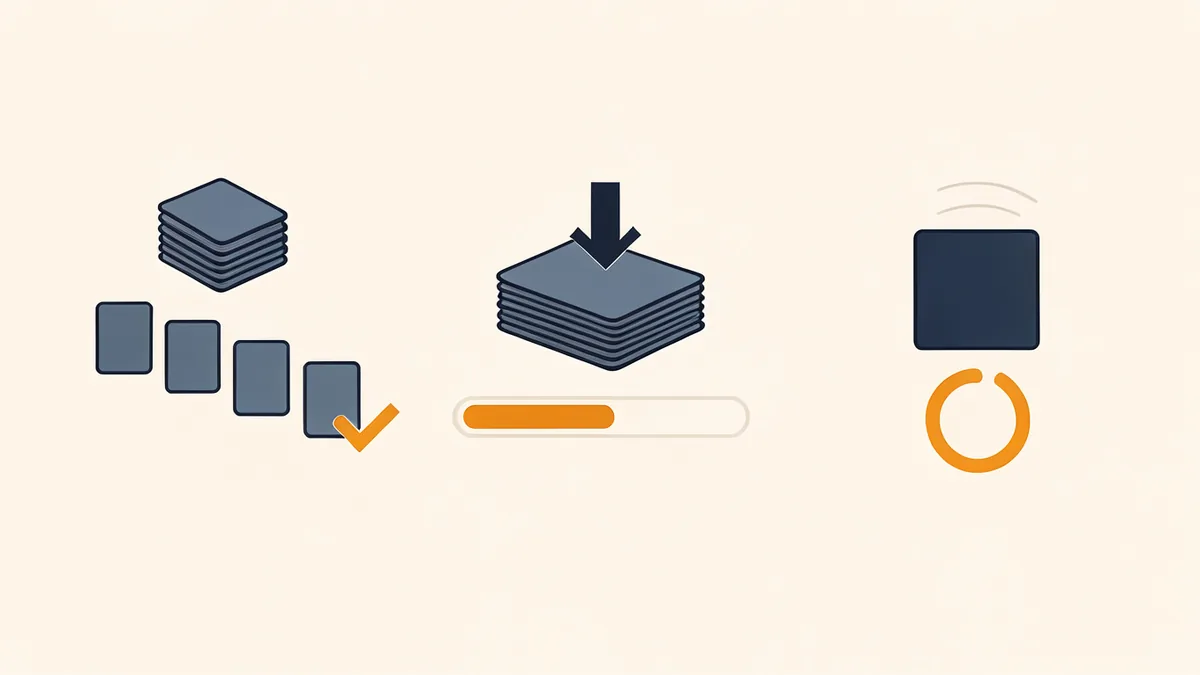
Fast. The reader loads pages as they are needed rather than pulling the whole file first. Your document opens in a second or two even on a weak connection. This is what you want.
Slow. The whole PDF downloads before the first page appears. On a big catalogue this means a loading spinner, then a reader who has left.
Never. Some readers load every page as a full size image up front. A fifty page catalogue can become tens of megabytes. On mobile data, that never finishes.
Ask the vendor one direct question. Does the reader load pages on demand, or does it load the whole document first? A vendor who cannot answer in one sentence has not thought about it.
Page weight has a real commercial cost. Google’s own guidance on page experience is blunt about speed affecting whether people stay. A reader that people abandon is worse than a plain download link, because you paid for it.
Preparing the file so the reader can be fast
Half of the speed question is decided before any page turning pdf reader touches your document. Three habits make the difference.
Export for screens, not for print. A catalogue exported at print resolution carries detail no monitor can show. Export at 150 dots per inch or lower and the file often shrinks by three quarters with no visible loss.
Compress images inside the PDF before exporting. If your document is mostly photographs, run it through a compression step first. This single move does more for load time than any reader setting.
Split the monster. A two hundred page manual does not need to be one file. Split it by section and let each section be its own page turning pdf reader link. Readers arrive at the part they need and the weight per page drops sharply.
Do those three things and even an average reader will feel quick. Skip them and the best reader on the market will still feel heavy.
Test 4: Who can read it, and who cannot
A page turning pdf reader usually exists to control access, so test the control before you trust it.
Run through this short list against your own use case.
Public. Anyone with the link can read. Fine for a brochure or a public report.
Sample then gate. The first few pages are open, and page five asks for an email before continuing. This is the pattern that turns a reader into a lead. Check that the gate is a real gate. Many readers show a form that can be dismissed or bypassed by scrolling.
Private link. The document is unlisted and only people with the exact link reach it. Good for client work.
Password or account. Only named people get in. Necessary for paid material.
No download. The reader can read but cannot save the file. Be honest with yourself here. Any file that reaches a browser has already been sent to that browser. No reader can prevent a determined person from saving it. What a reader can do is make casual saving inconvenient. That is the honest limit, and any vendor who claims otherwise is overselling.
Decide which of those five you need before you shop. A reader with no gate cannot become a reader with a gate later without swapping tools.
Test 5: Does it live on your site or theirs
This is the test that changes your cost, your speed, and your future.
There are two shapes a page turning pdf reader comes in.
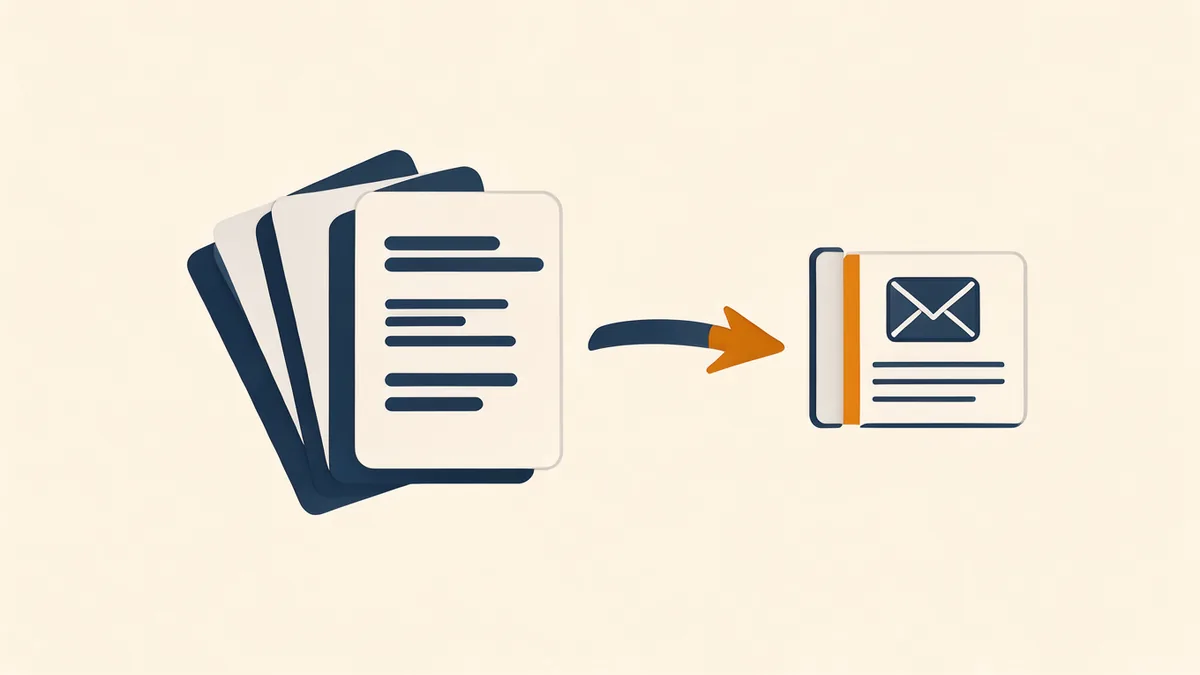
Hosted. You upload the PDF to the vendor’s platform and they give you a link or an embed code. Fast to start. Nothing to install. But your document now lives on someone else’s server, your reader sees their branding unless you pay to remove it, and the day you stop paying is the day your document stops working. Your PDF also becomes one more place you have to remember to update when the content changes.
Self hosted. The reader runs on your own website, usually as a WordPress plugin. Your file stays on your server. You control the design, the analytics, and the exit. Setup takes longer and there is a plugin to keep updated, but the document stays yours.
For a one time brochure you send to twenty people, hosted is fine.
For anything that is part of your site, part of your brand, or part of how you win customers, self hosted is the calmer choice, because nothing external can switch your document off.
If your site runs WordPress (the publishing platform behind a large share of the web), the self hosted route usually means a plugin such as SOVEL RealFlip, which turns a PDF into a page turning reader on your own domain. On your own domain, the link, the branding, and the visitor’s attention all stay with you.
Test 6: Will it still work in two years
A page turning pdf reader is a small piece of software with a long tail of maintenance. Test the tail before you commit.
Ask these five questions and write the answers down. If a vendor cannot answer, that is your answer. For a worked example of how plugin pricing actually lands, the breakdown of WordPress flipbook plugin cost is worth reading before you commit to a licence.
A page turning pdf reader bought on a yearly plan is a small subscription that never stops. A one time licence is a single decision. Neither is automatically better. Match it to how long the document must live.
When was the last release? A plugin without a release in eighteen months is a plugin that has stopped keeping up with WordPress and browser changes.
Does it work with your current WordPress version? Check the compatibility line, not the marketing page.
What happens to the reader if you disable the plugin? Good behaviour: the PDF link still works, or a clear fallback appears. Bad behaviour: broken embeds across your site.
Where does support live? A real ticket system, or an email address in a footer. Both can be fine. A support forum with unanswered questions is not.
Can you export or move? If your documents are locked inside a hosted platform’s format, moving costs you all of them.
There is a simpler version of this test. Imagine you must migrate hosts next month. Would this reader come with you in an afternoon, or would it take a week of rebuilding? Choose the afternoon.
WordPress flipbook plugin cost breakdown
Where page turning pdf readers go wrong
Six failures appear again and again. Knowing them saves you a bad purchase.
The file is too heavy. A catalogue exported at print resolution (300 dots per inch, the setting used for physical printing) is ten times larger than a screen needs. Readers cannot fix a file that was never made for screens. Export at screen resolution first.
Two pages on a phone. Covered above, still the most common mistake. Always set one page on small screens.
No fallback. If the reader fails to load, a visitor sees a white box. Always keep a plain download link or a link to a normal PDF view underneath.
Gated too early. A gate on page two, before the reader has seen anything worth wanting, kills conversion. Let the value show first.
No way to know if it worked. If you cannot see how many people opened the document and how far they read, you cannot improve it. Check for basic analytics before you buy.
Paid for animation, forgot the content. The most expensive mistake. A dull PDF with lovely pages is still dull.
The mistake that costs the most
Of the six, the last one deserves its own paragraph.
A page turning pdf reader is easy to buy because it looks like progress. The animation is visible and the invoice is small. But the reader is downstream of the document. If the document has no clear reason to exist, the turn merely delays the moment someone closes it.
Before you compare readers, answer this on paper. What should a reader do after finishing page twelve? Call you, request a quote, join a list, share the link, or nothing at all because it is a public report. If the answer is nothing, a plain link is honest and cheap.
If the answer is something, the reader has a job that a plain download cannot do, and now the six tests are worth running properly.
A quick comparison, honestly framed
Not every reader suits every case. Here is the plain version, with no invented scores.
| Your situation | Sensible shape | Why |
|---|---|---|
| Sending one brochure to a few people | Hosted reader, free tier | No setup, no upkeep, no cost |
| A brochure, catalogue, or report on your own site | Self hosted plugin | File stays yours, no external switch off |
| Paid material behind a login | Self hosted plus membership | Access control is your own system |
| Sample that captures email | Reader with a real gate plus your form | One flow, one place to measure |
| Very large catalogue, many pages | Reader that loads pages on demand | Page weight decides whether people stay |
| Sharing one document with a client | Self hosted reader behind a private link | No public exposure, no vendor dependency |
| Print ready document only | Plain PDF download | Honestly, a turn adds nothing here |
If you are still weighing a reader against a simpler approach, the guide to a PDF flipbook plugin for WordPress covers a lighter option in detail. A page turning pdf reader is the heavier, more deliberate choice, and it earns its weight only when the document deserves attention.
PDF flipbook plugin for WordPress
That last row matters. Sometimes the right answer is a plain link. Recommending a reader for a document that gains nothing from one is a way to lose trust.
What a real buyer found
One piece of outside evidence before the last section. This review is on the public Trustpilot page for sovel.pro.
> “156 Optical Leads in 3 Minutes and 45 Seconds: 63 of My First 72 Contacts Placed Orders”
>
> Krazy Khan, optical frames supplier, Annamayya district, Andhra Pradesh. Rated 5 out of 5 stars.
The numbers are specific. The run produced 156 business leads with public phone, email and social contacts. From the first batch of 56 shops, 49 placed confirmed orders. Across 72 businesses contacted, 63 placed orders, three at Rs 50,000 to Rs 1,20,000 each.
The reviewer is careful about one thing, and it should be repeated here. The software did not generate sales. He made the calls, visited the shops, presented the frames, and followed up. The tool did the discovery and research quickly. He did the selling.
That is the honest version of what any tool can do. It is also the version worth trusting.
“156 Optical Leads in 3 Minutes and 45 Seconds: 63 of My First 72 Contacts Placed Orders”
Krazy Khan, optical supplier, Annamayya district, Andhra Pradesh
What to do in the next twenty minutes
1. Pick your real PDF, the weakest page included.
2. Load it in two candidate readers.
3. Run all six tests above on your phone, then your laptop.
4. Write the answers down in a short list.
5. Choose the one that passed, not the one that looked best in a demo.
If you want a head start, the plain question to ask first is whether you need the reader on your own site at all. That single decision removes half the options and most of the risk.
Where to go next
If your document needs to sit inside a page rather than open like a book, the guide on embedding a PDF on a website covers the lighter option in detail.
Common questions
Is a page turning pdf reader the same as a flipbook plugin?
Mostly, yes. Flipbook is the older word and describes the physical effect. Page turning pdf reader describes the same idea in the language people now search. The underlying software is the same category.
Will a page turning pdf reader slow down my website?
It can, if the reader loads whole documents up front. Choose one that loads pages on demand, keep files at screen resolution, and test on a slow connection before you publish.
Can readers still download the PDF?
Usually yes, and you should assume so. Any file that reaches a browser has been sent to that browser. A reader can make casual saving inconvenient, not impossible. Plan your access rules around that fact.
Does it help search rankings?
The reader itself is not a ranking factor. What helps is that a well presented document keeps people on the page longer and gives you a page worth linking to. The reading experience is the benefit, not a shortcut to rankings.
Do I need coding skills to add one?
For a self hosted plugin on WordPress, no. You install it, upload the PDF, and copy a short code onto a page. For a custom build outside WordPress, yes, you would need a developer.
Can I use it for paid material?
Yes, but pair it with real access control such as a membership login. A reader alone is a presentation layer, not a payment system.
What about tablets and printing?
Tablets are where the effect is strongest, because the screen fits a full page and the touch gesture matches a real turn. Test landscape as well as portrait. For printing, a page turning pdf reader is for screen reading. If people need to print the document, keep the original PDF available for download alongside the reader.
The short version
A page turning pdf reader succeeds or fails on four quiet things that have nothing to do with how pretty the turn looks. It must read your real file correctly. It must stay light on a slow connection. It must keep control of access in your hands. It must still work in two years.
Test those four, plus the feel of the turn and the mobile layout, and you will choose well. A page turning pdf reader that passes all six is a tool you can recommend to a client without checking again in six months.
Start with your own weakest page. That one page will tell you more than any feature list.
If your site already runs WordPress and you want the reader on your own domain, SOVEL RealFlip is a page turning pdf reader built for exactly that job. If you only need a quick utility, the free tools cover simpler document tasks without a licence.
Whichever path you take, decide the access rule first. A page turning pdf reader is a presentation layer, and presentation is only useful when the document behind it has a clear job.