
Online document and text tools fall into two groups, and the difference between them is not cosmetic. One group runs entirely inside your browser, so the file you open never leaves your device. The other group uploads your file to a server, processes it there, and sends a result back. Both groups look identical on screen. Only one of them keeps your document on your own machine.
That distinction is the whole subject of this article. It explains what “browser-local” means in plain terms, what the three common jobs of a text utility actually involve, what client-side tools can and cannot do, and how to check in under a minute whether a tool you are using runs in your browser or on someone else’s computer.
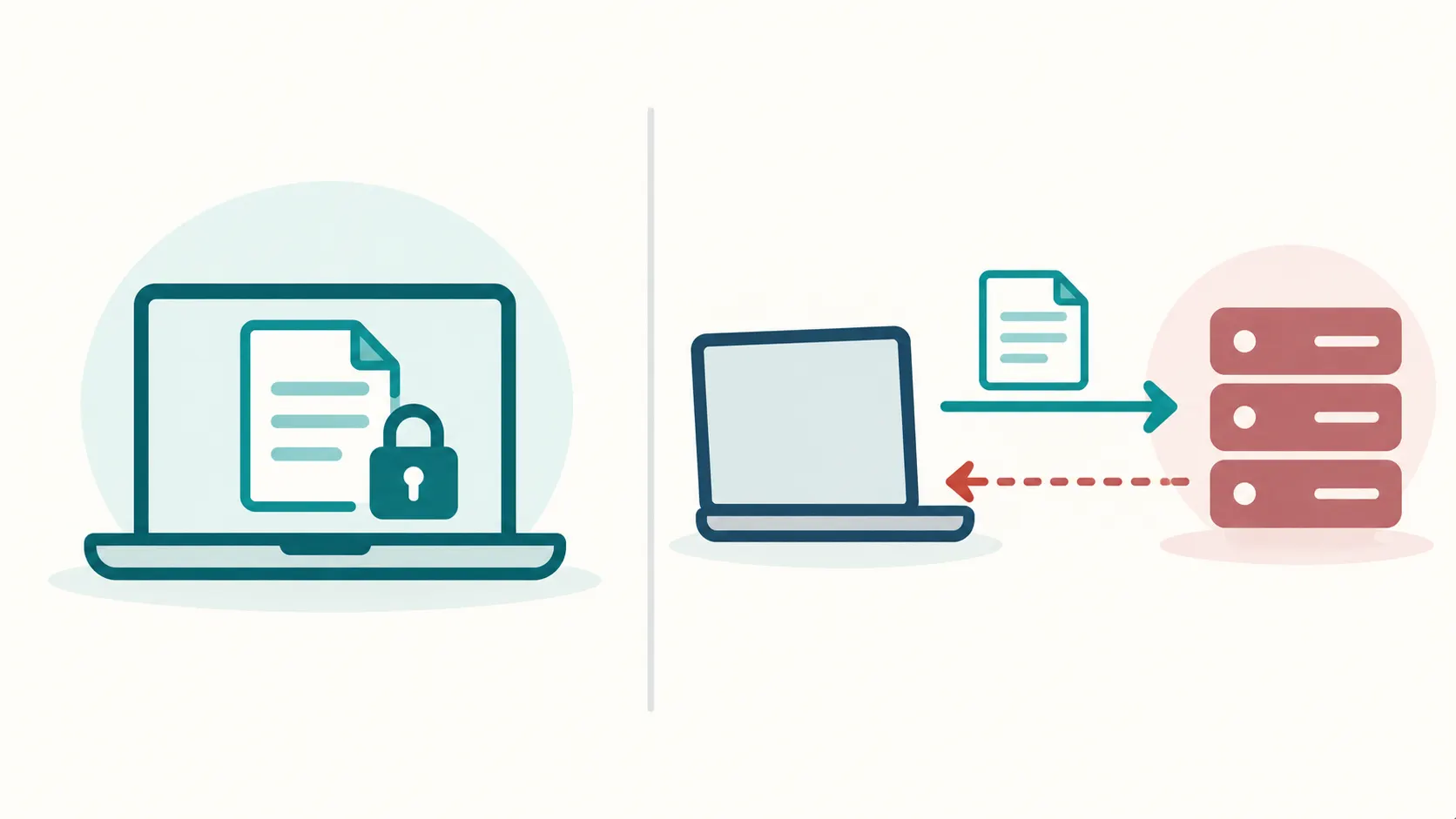
What browser-local actually means
A browser is a program that runs on your computer. When a web page loads, the browser downloads the page’s code and runs that code locally, on your machine, using your own processor and memory. This is how every interactive web page works. The question that decides privacy is not whether the code runs in a browser. It is where the code sends your data.
A browser-local tool is a web page whose processing code runs entirely in the browser tab and never transmits the file to a server. You open the page, choose a file, and the transformation happens on your device. When you close the tab, nothing was sent anywhere.
A server-based tool is a web page that takes your file, sends it over the network to a computer the operator controls, processes it there, and returns the result. The processing happens somewhere else, on hardware you do not own and cannot inspect.
Both models are legitimate. Some tasks genuinely need server hardware, such as heavy video encoding or large-scale optical character recognition. The problem is not that servers exist. The problem is that many tools do not tell you which model they use, so you cannot make an informed choice.
Why the upload model became the default
The upload model is older than the modern browser. In the early web, browsers could not do much computation, so any real work happened on a server. Developers built that way because there was no alternative.
Browsers changed. Modern browsers can read files, parse structured text, render PDFs, run encryption, and manipulate large strings, all without a network round trip. A 2015 browser could not reliably do these things. A current browser can.
The old architecture survived anyway, for three reasons. First, servers give the operator more control over usage and monetization. Second, server logs are useful business data. Third, and most practically, an existing server pipeline is expensive to rewrite, so it keeps running.
The result is that many tools still upload files out of habit rather than necessity, even when the browser could do the same job locally.
The three jobs these tools actually do
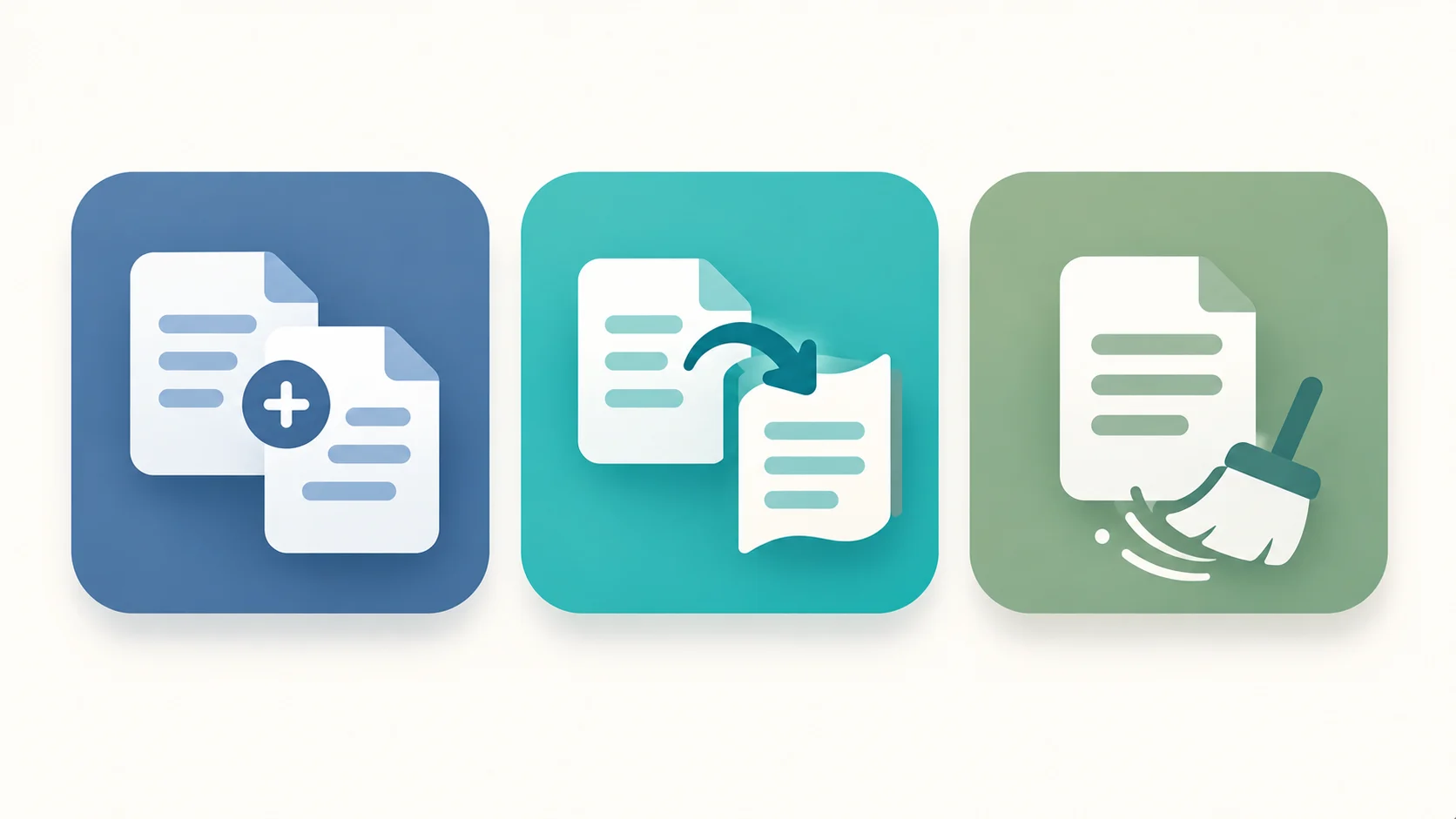
Most “document and text” utilities perform one of three jobs. Naming them precisely helps you judge whether a tool needs a server at all.
1. Document assembly
Document assembly means combining, splitting, or reordering parts of a document. Merging two PDFs, extracting a page range, rotating a scan, or joining a set of text files into one are all assembly tasks. These are structural operations on a file that already exists. They are well within a browser’s ability.
2. Format conversion
Format conversion means changing a file from one representation to another, such as plain text to a formatted document, or a structured data file to a readable table. Simple, well-defined conversions are suitable for client-side processing. Conversions that depend on a large proprietary rendering engine are harder and often still need a server.
3. Text cleaning
Text cleaning means normalizing text that was copied from somewhere else. Removing hard line breaks from a pasted paragraph, collapsing repeated spaces, stripping invisible characters, fixing curly quotes, and changing letter case are all cleaning tasks. These operate on strings, which is the most browser-friendly category of all.
What browser-local tools do well
Client-side processing has real advantages that have nothing to do with privacy as an abstract ideal.
The first is speed. There is no upload time and no download time. A file that would take thirty seconds to upload on a slow connection processes instantly, because the data never crosses the network.
The second is offline capability. Once a browser-local tool has loaded, it keeps working if your connection drops, because the processing never depended on the network in the first place.
The third is data minimization. A file that is never transmitted cannot be intercepted, logged, retained, or misused. This is not a marketing claim, it is a property of the architecture. The strongest privacy control is not a promise about how data is handled, it is a design where there is no data to handle.
The fourth is independence from the operator’s uptime. A server-based tool stops working when the server is down or the business closes. A browser-local tool that has loaded continues to function.
What browser-local tools cannot do
Honesty matters more than a feature list, so the limits deserve the same space as the benefits.
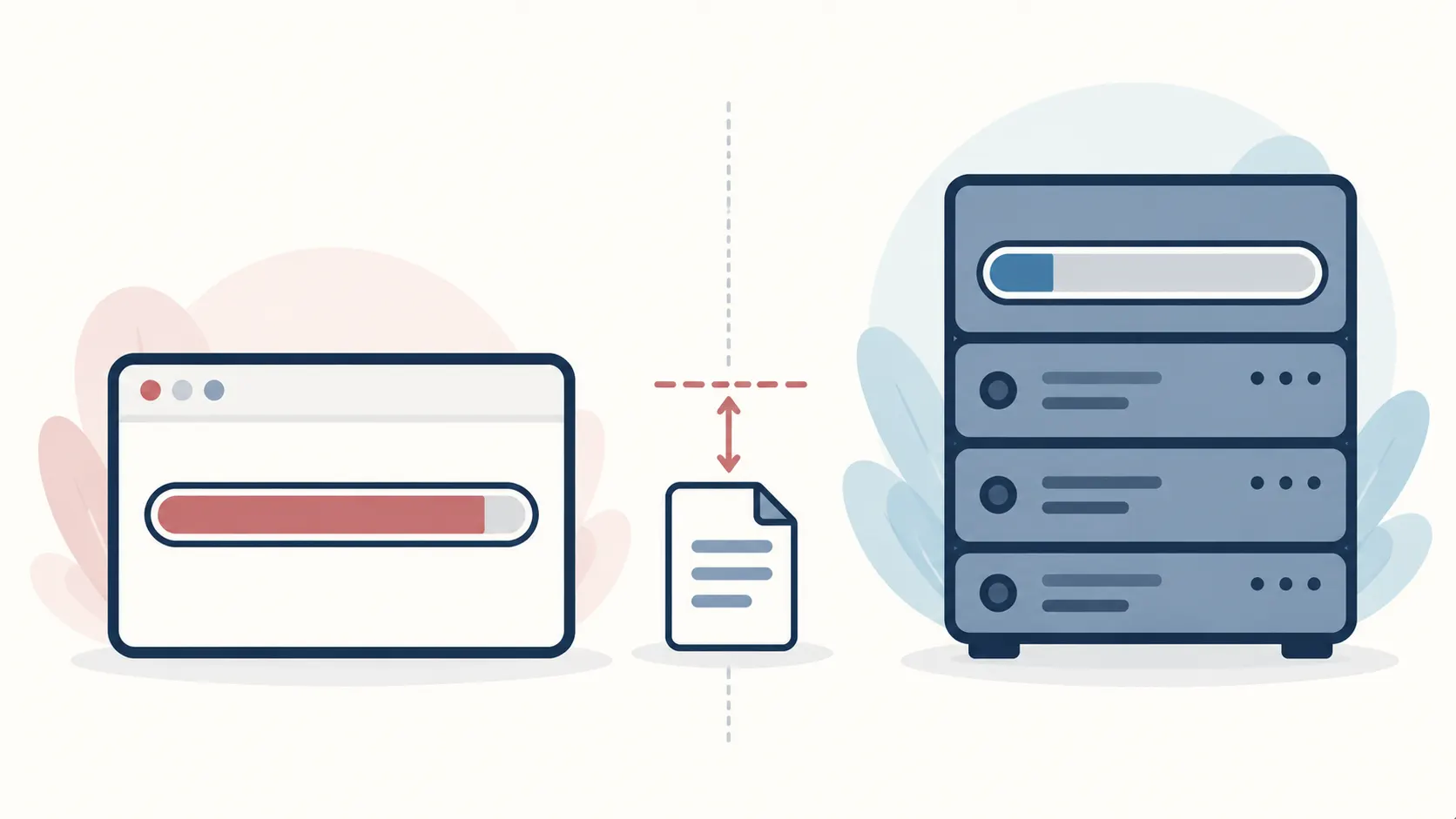
Browser-local tools cannot perform tasks that exceed the memory or compute available to a single browser tab. Very large files, above roughly several hundred megabytes, may cause a tab to slow or crash, where a server with more memory could handle them.
They cannot perform conversions that require a large proprietary engine, such as accurate layout-preserving conversion of complex word-processing documents. Reproducing every font, style, and page break faithfully needs more than a browser can reliably provide.
They cannot easily support collaboration, because there is no shared server to hold a common copy.
And they cannot provide the server-side analytics that some businesses want. That is a cost to the operator, not a benefit to you, but it is part of why the upload model persists.
How to tell where a tool runs
You do not need to read the source code to find out. Four checks take under a minute.
The first is the network tab. Open your browser’s developer tools, switch to the network panel, and watch the requests while you use the tool. If your file appears in an outgoing request, the tool uploads it. If the only requests are for the page’s own code and assets, the processing is local.
The second is the file size ceiling. Tools that upload often advertise a size limit, because storage and bandwidth cost the operator money. A tool with no stated limit is more likely to be local, though this is a hint and not proof.
The third is offline behaviour. Load the tool, then disconnect from the internet and try to use it. A browser-local tool keeps working. A server tool fails, because it needs the round trip.
The fourth is the privacy wording. A tool that says “we do not store your files” is making a promise about server behaviour, which implies a server. A tool that says “your file never leaves your device” is describing an architecture. The second kind of statement is stronger, and it is only true for client-side processing.
What actually happens to an uploaded file
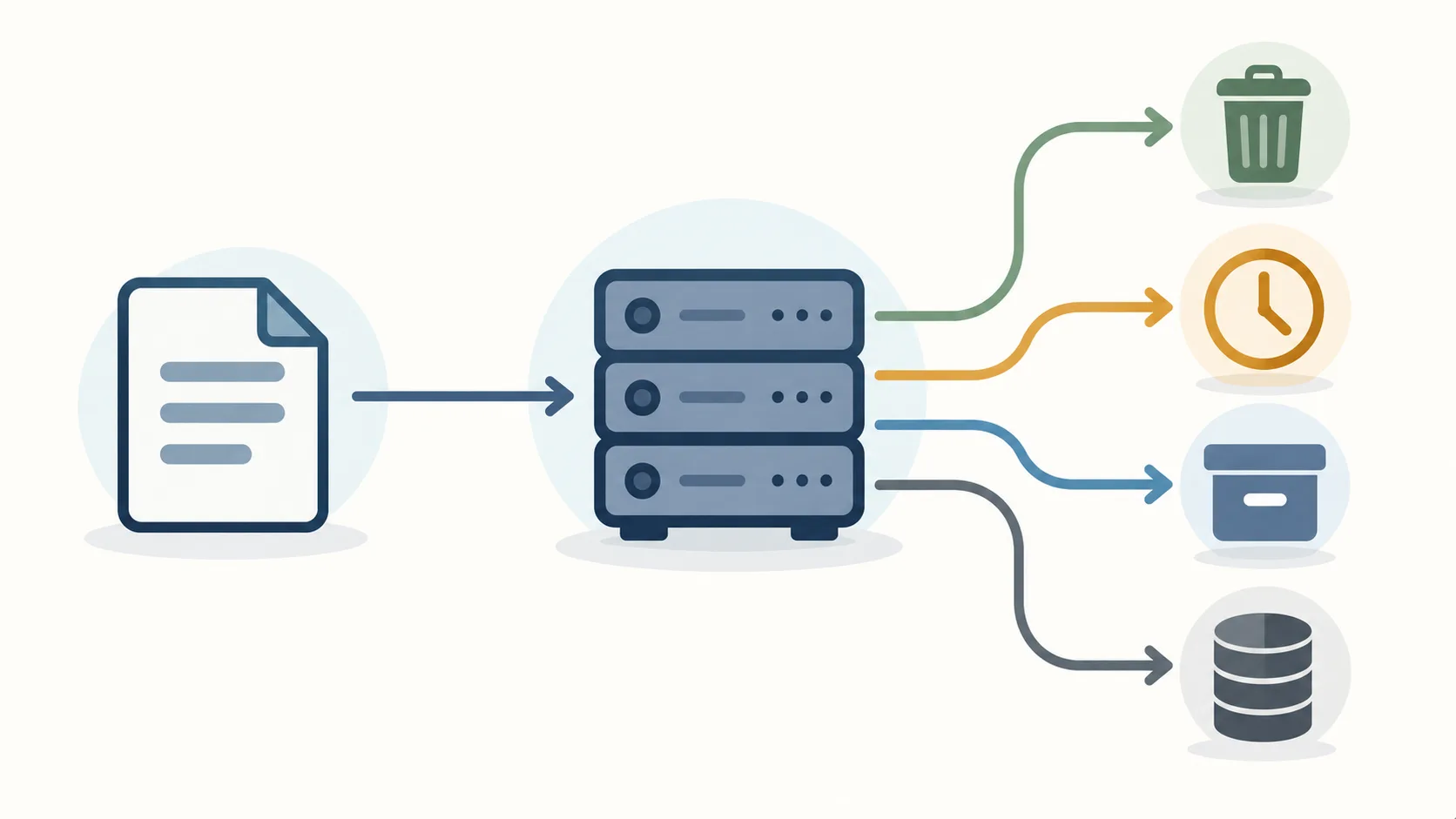
When a file is uploaded, it is copied to a machine the operator controls. What happens next depends entirely on the operator, and the range is wide.
At one end, a responsible operator deletes the file immediately after processing. At the other end, files are retained, backed up, scanned, or used to train models. Many operators do not state which they do, and the terms of service are often the only place the answer appears, if it appears at all.
The point is not that every server tool is untrustworthy. The point is that upload creates a dependency on trust, and browser-local processing removes the dependency. When a document contains a contract, a medical note, a client list, or anything you would not post publicly, removing the dependency is a reasonable default.
Zero login as a design choice
A related decision is whether a tool requires an account. Free utilities often ask for an email address, which turns a one-time task into a relationship and gives the operator an identity to attach to usage.
The SOVEL master rules treat no-login access as a requirement for free tools, on the reasoning that a free utility should remove friction rather than create it. That is a design stance, and it has a cost: without accounts, the operator cannot email you about a new version or build a mailing list. The trade is deliberate. The utility works immediately, and you decide separately whether to follow the product.
For a task you will perform once or twice, an account requirement is pure overhead. For a tool you use daily, an account may be worth it. The honest position is that the requirement should match the value, and a basic text utility rarely justifies a signup.
A short checklist for choosing a tool
When you pick a document or text tool, four questions cover most of the decision.
First, does the tool need my file to leave my device, or can the job be done locally? If it can be done locally, prefer the local tool.
Second, what is the size ceiling, and is it stated honestly? A tool that hides its limits wastes your time at the worst moment.
Third, does it require an account, and is that reasonable for the task?
Fourth, what is the output quality, especially for conversion? Test with a file that matters before you rely on it for one that does.
Where these tools fit in a real workflow
A document and text utility rarely appears on its own. It sits inside a larger task, and knowing where it fits tells you which utility you actually need.
Consider a typical publishing workflow. A draft arrives from a writer, often as a PDF or a word-processor file. The editor needs the text in a clean, plain form before working on it. That is a cleaning task: remove the stray line breaks, collapse the extra spaces, strip the invisible characters.
Once the text is clean, the editor measures it. A word count confirms the piece meets the brief, and a reading-time estimate tells the publisher how it will feel to a reader. That is a counting task.
Next comes formatting. Headings need a consistent case, and the style guide may call for sentence case in one place and title case in another. That is a case conversion task.
Finally, the finished piece is exported. If it has to reach a reader as a document, a conversion turns the working format into the delivery format. That is a conversion task.
Four jobs, four utilities, one workflow. The value of grouping them is not that they share a screen. It is that they share the same principle: each is a small, well-defined transformation that a browser can perform locally, so the draft never has to leave the editor’s machine.
That last point matters more than it first appears. A draft manuscript is often the most sensitive file a publisher holds. It may contain an author’s unpublished work, a client’s confidential material, or personal data. A workflow that keeps every step local removes a class of risk that no privacy policy can fully address, because the strongest protection is a file that was never transmitted.
The same pattern appears well outside publishing. A developer cleaning a pasted log, a student checking an essay length, a marketer trimming a meta description, and a researcher extracting text from a scanned paper all perform one of the four jobs above, and each benefits from doing it locally.
The practical takeaway is to match the job to the tool rather than hunting for one tool that does everything. A cleaner that also counts is convenient, but a cleaner that cleans well and a counter that counts accurately will beat a single tool that does both poorly. When you evaluate a utility, judge it on the one job you need it for, and check that it does that job without sending your file away.
Frequently Asked Questions
What does browser-local mean?
It means the tool’s processing code runs inside your browser tab, on your own device, and the file you open is never transmitted to a server. Closing the tab ends the process, and nothing was sent anywhere.
Are online document tools safe?
They can be. The relevant question is whether the tool uploads your file. A browser-local tool that never transmits the file is safe by construction, because there is no copy outside your device to be exposed. A server tool depends on the operator’s retention policy, which you should check before uploading sensitive material.
Can a browser really convert documents without a server?
Yes for simple, well-defined conversions and for all text operations, because a modern browser can read files, parse structured text, and manipulate strings locally. Complex layout-preserving conversions of word-processing documents are harder and often still need a server.
Is there a file size limit?
For browser-local tools, the practical limit is your device’s available memory rather than a fixed number. Large files, above roughly several hundred megabytes, may slow or crash a browser tab. A tool should state this limit rather than let you discover it.
Do I need to create an account?
For a basic text or document utility, no. Zero-login access is a reasonable expectation for a free tool, and a signup requirement should be justified by real value rather than used to collect an email address.
Why would a tool upload my file if it does not have to?
Because the upload model is often inherited from an older architecture, and because server logs and accounts are useful to the operator. Some tasks genuinely need server hardware, but many do not, and the tool may not say which case applies.
Where to Read Next
This article is the entry point to a five-article cluster about browser-local text and document utilities. The word counting piece covers what a word counter online should actually count. The formatting piece covers the case converter online and when each case is correct. The cleaning piece covers how to remove line breaks online without destroying paragraphs. The conversion piece covers what a document converter online can and cannot do in a browser.
The SOVEL Software family page lists the utilities in the free tools group. If your work is built around documents and books, the SOVEL Studio WordPress theme ships the content model that these tools support.
Word count: 2,453