
A document converter online makes a simple promise: give it a file in one format, get it back in another. The promise is honest for some conversions and misleading for others, and the difference is rarely explained. A browser can convert text and structured data between simple formats with no server at all. It cannot faithfully reproduce the exact layout of a complex word-processing document, and any tool that claims otherwise is either using a server or losing information quietly.
This article draws the honest line. It explains which conversions a browser can perform locally, which still need a server, what is lost when a format changes, and how to check the result before you rely on it.
What conversion actually changes
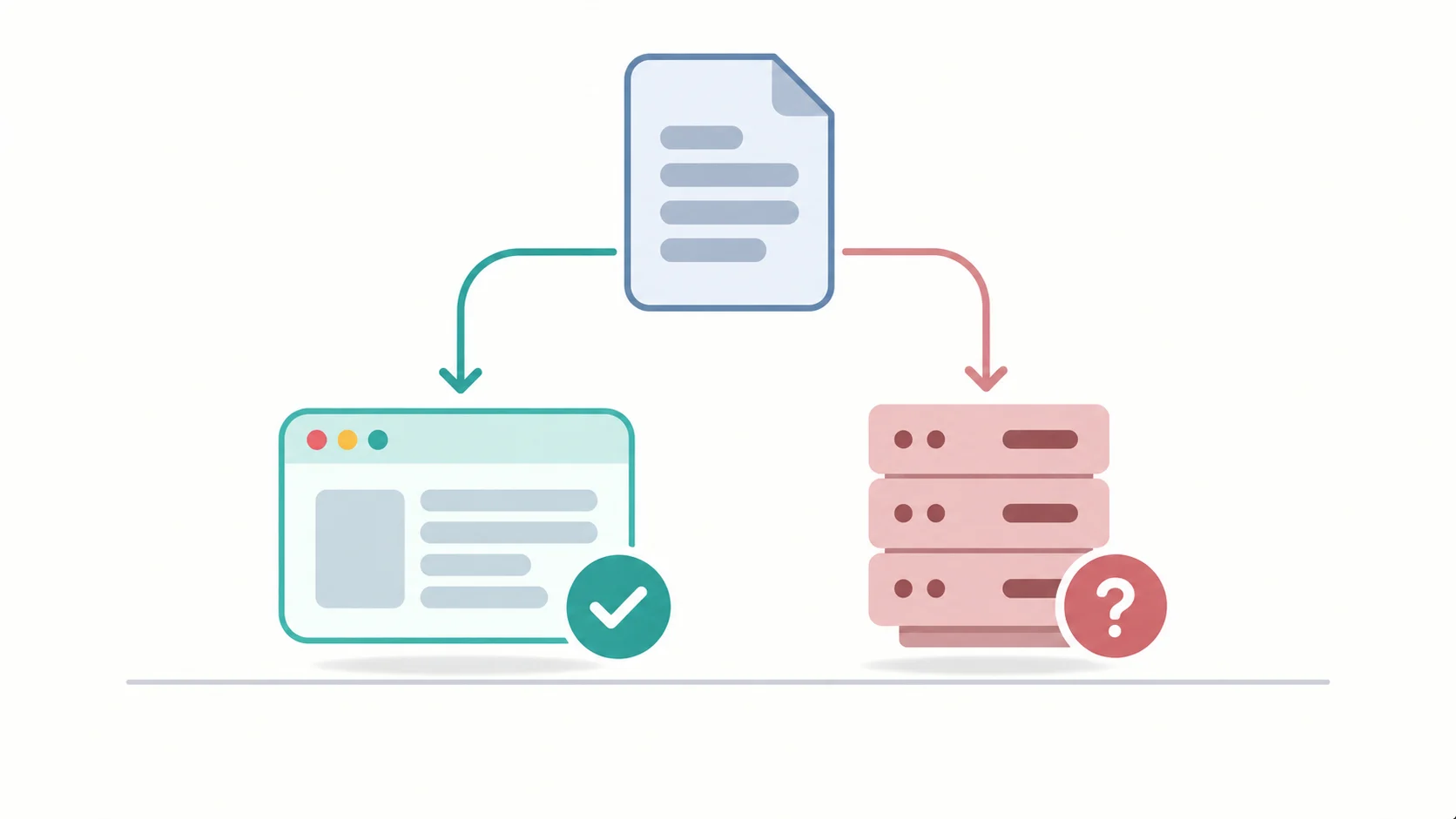
Before the tools, the concept. Converting a document means changing its representation, and a representation carries three things: the content, the structure, and the presentation.
Content is the words and the data. Structure is how the content is organized, such as paragraphs, headings, and table rows. Presentation is how it looks, such as fonts, colours, and exact spacing.
A conversion that preserves all three is called lossless. A conversion that keeps content and structure but drops presentation is called lossy in a controlled way, and it is often exactly what you want. A conversion that loses structure as well is the dangerous kind, because the result looks fine at a glance and breaks when you use it.
The key question for any converter is therefore not “does it work” but “what does it preserve”.
Conversions a browser handles well
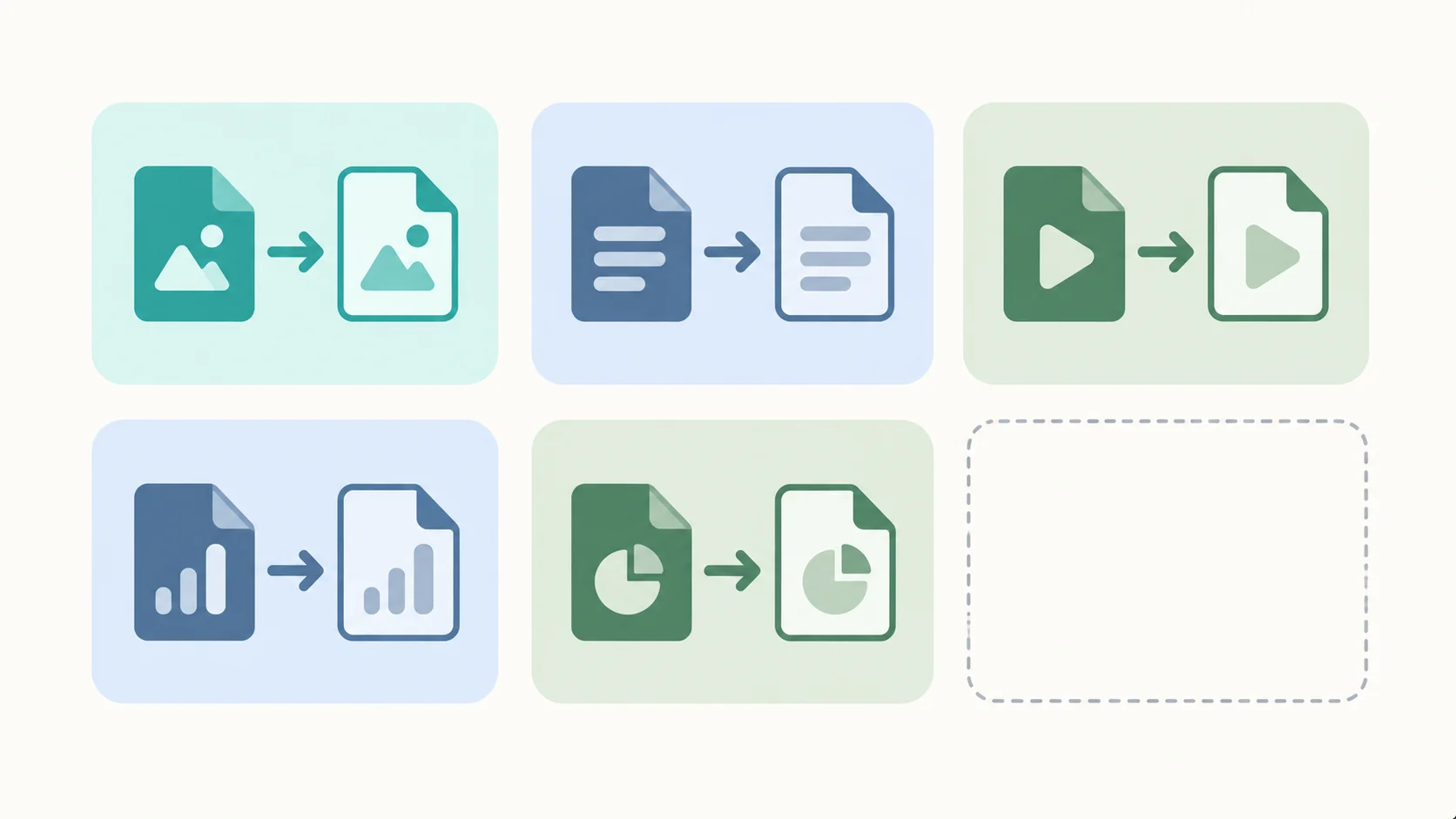
These conversions are simple, well-defined, and within a browser’s ability. They can run locally with no upload.
Plain text to formatted document
Turning a plain text file into a structured document is a mapping from one well-defined structure to another. Headings, paragraphs, and lists can be inferred from blank lines and markers. A browser performs this instantly.
Structured data to readable table
A comma-separated or tab-separated file to a readable table is a parsing task. The browser reads the rows, applies the delimiters, and renders the result. This is fast and reliable for well-formed data.
Markdown to HTML
Markdown to HTML is a defined transformation with a known specification. A browser can perform it locally, and the result is exact because both formats are plain text.
Text extraction from simple documents
Pulling the text out of a simple document, without preserving layout, is a reading task a browser can do. The output is plain text, which is exactly what this category of conversion should produce.
Image format changes
Converting between common image formats is a browser operation, because the browser already decodes and re-encodes images for display. This is a local task.
Conversions that still need a server
These conversions are the ones where the honest answer is “a server does this better”, and pretending otherwise misleads the user.
Layout-preserving word processor conversion
Converting a complex word-processing document to a PDF while reproducing every font, margin, and page break exactly requires a full rendering engine. A browser cannot reproduce a proprietary layout engine faithfully. Tools that claim to do this in the browser are usually using a server, or they are losing layout and not saying so.
Scanned document to searchable text
Optical character recognition on a scanned image is compute-heavy and benefits from a server’s processing power, though light OCR can run in a browser for small images. For large or low-quality scans, a server does a better job.
Large files above the memory ceiling
A browser tab has a memory limit. Files above roughly several hundred megabytes may crash the tab. A server with more memory handles them, at the cost of uploading.
Complex spreadsheet conversion with formulas
Preserving formulas, references, and formatting across spreadsheet formats requires a full spreadsheet engine. Simple data extraction is local; full fidelity is not.
Format conversion with embedded assets
A document with embedded fonts, images, and scripts cannot be converted with full fidelity in a browser, because the embedded assets need processing that exceeds what the tab can do reliably.
The honest position for this category is that browser-local conversion covers the common cases, and the hard cases need a server. A tool that says so is more trustworthy than one that claims to do everything locally.
What is lost when a format changes
Loss happens at every conversion, and knowing the common losses helps you judge whether the output is usable.
Fonts are the first loss. If the target format cannot embed the font, it substitutes one, and the text reflows. Line breaks change, page breaks change, and the document no longer looks like the original.
Spacing is the second. Precise spacing between letters and lines is a presentation detail that simple formats cannot carry. Text that was laid out on a grid becomes flowing text.
Images are the third. An image embedded in a document may be compressed, resized, or dropped entirely when the target format does not support it.
Structure is the fourth, and the most damaging. A table converted to plain text loses its rows and columns. A multi-column layout converted to a single column merges content that should have stayed separate. Headings converted to plain text lose their hierarchy.
Metadata is the fifth. Author, date, and other document properties are often dropped, which matters when the file needs to be traceable.
A converter should tell you what it drops. A converter that drops structure without warning has produced a file that looks fine and fails later.
How to check a conversion before you rely on it
A quick test prevents the failure that happens after you have already used the output.
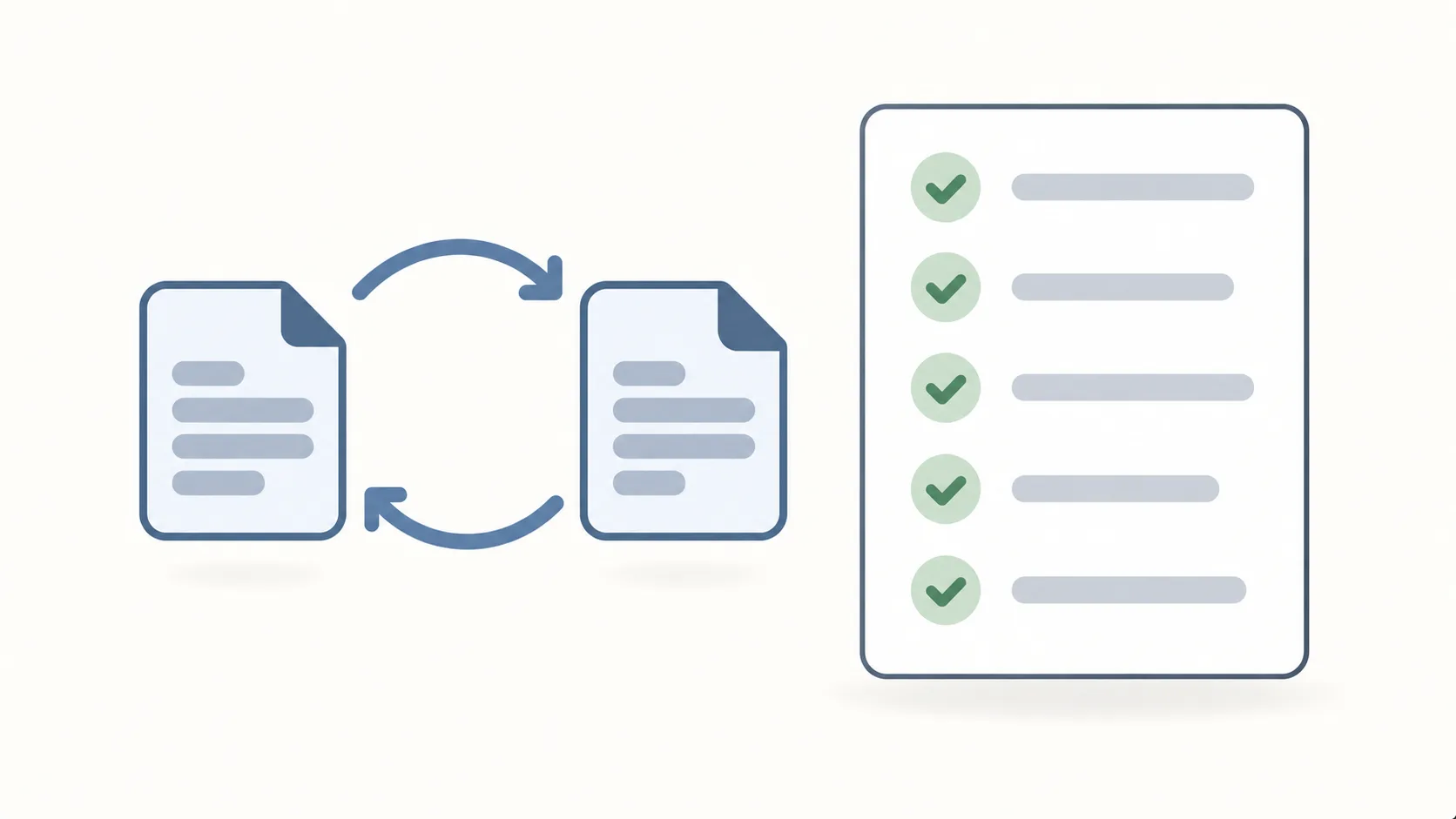
The first check is the round trip. Convert the file, then convert it back, and compare the result with the original. Losses compound, and a round trip exposes them faster than a single pass.
The second check is the structure. Open the output and confirm that headings are still headings, lists are still lists, and tables are still tables. If the structure collapsed, the conversion is not usable for anything but reading.
The third check is the special characters. Curly quotes, accented letters, currency symbols, and em dashes are the first things to break in a sloppy conversion. Check them before you ship the file.
The fourth check is the count. Count the words or rows before and after. A sudden drop means content was lost, not just reformatted.
The fifth check is the size. An output that is dramatically smaller than expected may have dropped embedded assets. An output that is dramatically larger may have failed to compress. Both are worth a second look.
Choosing a converter
Four questions cover the decision.
First, does the conversion need to preserve exact layout? If yes, expect a server, and expect to upload. If no, a browser-local converter is likely sufficient and safer.
Second, does the tool state what it preserves and what it drops? A tool that names its limits is more trustworthy than one that promises perfection.
Third, does it require an account? A one-time conversion rarely justifies a signup.
Fourth, can you test it on a file that matters before you commit? A tool that lets you try before trusting is the right one to use for real work.
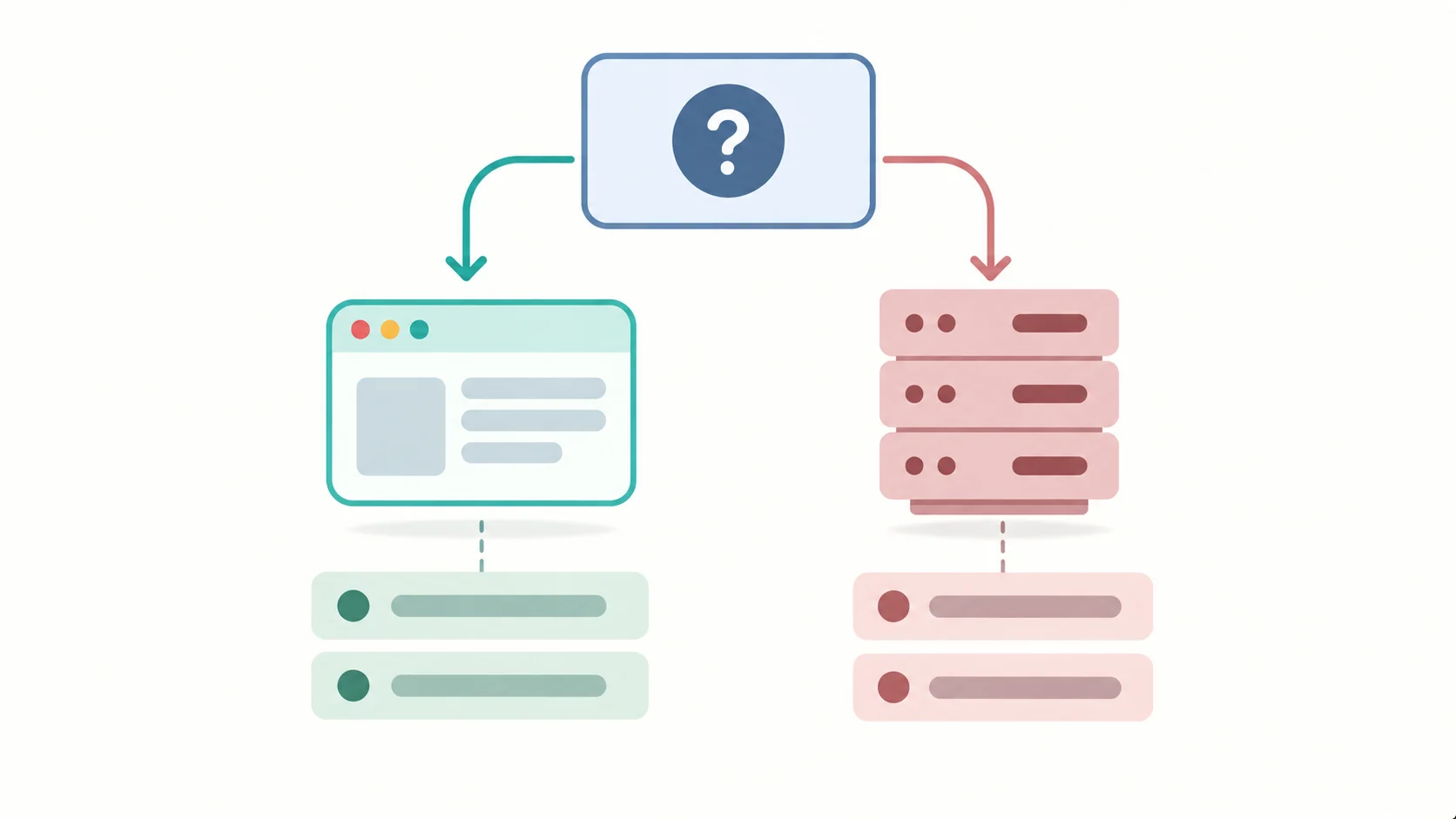
Format pairs and what they preserve
Not every conversion pair behaves the same way. Knowing what each pair preserves tells you whether the output will be usable before you convert.
Plain text to formatted document
Content is preserved exactly, because plain text is only content. Structure has to be inferred from blank lines and markers, so the result depends on how well the source was formatted. Presentation is generated fresh by the target format. This pair is safe and predictable, which is why it is the most common local conversion.
Structured data to table
Content and structure are preserved, because the delimiters carry the structure. Presentation is minimal by design, since a table is a grid rather than a layout. The failure mode is malformed source data: a missing delimiter shifts every column after it, so validate the input before converting.
Markdown to HTML
This pair is lossless in one direction, because both formats are plain text and the mapping is defined. HTML to Markdown is not fully reversible, since HTML can carry presentation that Markdown cannot express. Convert Markdown to HTML freely; convert HTML back with care.
Word processor to PDF
Content and structure are usually preserved; presentation is preserved only by a full rendering engine. This is the pair where a browser-local tool hits its limit, because reproducing every font, margin, and page break needs more than a tab can do. If exact appearance matters, expect a server.
PDF to plain text
Content is extracted, structure is mostly lost, and presentation is gone entirely. Tables collapse, columns merge, and reading order can scramble when the PDF has a complex layout. This pair is useful for searching and reusing text, and poor for anything that needs the original shape.
Image format to image format
Content and dimensions are preserved; quality depends on the target format and the compression applied. Converting a compressed format to another compressed format loses quality, because the image is decoded and re-encoded. Convert from the original when quality matters.
Spreadsheet to comma-separated values
Content and the raw values are preserved; structure survives as rows and columns; presentation is lost entirely. Formulas are the trap, because a comma-separated file usually stores the calculated value rather than the formula, so the output is static where the source was live.
The pattern across all seven pairs is the same. The simpler the format, the more reliably a browser can convert it. The more presentation a format carries, the more likely the conversion needs a server, and the more information the output will quietly drop.
Frequently Asked Questions
Can an online document converter work without uploading?
For simple conversions, yes. Converting text, structured data, markup, and images between simple formats is a browser-local task that needs no server. Conversions that must reproduce complex document layout faithfully generally still need a server.
Why does the converted document look different from the original?
Because conversion changes the representation and loses presentation. Fonts are substituted, spacing is dropped, images may be recompressed, and precise page breaks are not preserved in simple formats. Content and structure usually survive; exact appearance does not.
Is it safe to convert sensitive documents online?
It depends on whether the tool uploads the file. A browser-local converter keeps the file on your device and is safe by construction. A server converter depends on the operator’s retention policy, which you should check before uploading anything sensitive.
What is the most reliable way to convert a PDF?
For text extraction without layout, a browser can do it locally. For layout-preserving conversion, a full rendering engine is needed and a server is usually involved. Decide first whether you need the layout, because that single question determines the right tool.
Why did my tables and headings disappear after conversion?
Because the target format could not carry the structure. Converting a structured document to plain text drops tables, headings, and columns, leaving text that looks intact but has lost its organization. Check the structure of the output before using it.
Can a browser convert a large document?
Up to a point. A browser tab has a memory ceiling, so files above roughly several hundred megabytes may slow or crash the tab. Larger files need a server with more memory, which means the file is uploaded.
Where to Read Next
This article is part of a five-article cluster about browser-local text and document utilities. The entry point covers why browser-local document and text tools beat uploading your files. The counting piece covers what a word counter online should actually count. The formatting piece covers the case converter online. The cleaning piece covers how to remove line breaks online.
The SOVEL Software family page lists every free utility in the tools group.
Word count: 2,016